Thursday, May 31, 2012

Our Digital Lives

   This summer, Claudia and I will be on vacation in Italy.  As I look back over the evolution of this trip, it's impossible to imagine planning it without an ongoing dependence on technology.
    The trip began to take shape last Thanksgiving.  We were in New Mexico with our college friends, Rick and Jan.  We've known them for 40 years, and have vacationed with them off and on over the years.  Last November, we hatched a plan to go to Italy together.  We talked about several different itineraries, but as we departed for NJ, nothing was set.
    We continued to exchange ideas via email and texts, and eventually a plan took shape.  Two weeks in Italy. The first week divided between Rome and Florence, the second week in the Tuscany countryside. And one more suggestion gave our plan a new twist; Rick and Jan asked if it was OK if their two sons went along.  We've watched the boys grow up and they're out of college now.  We like them both a lot so our reply was a definite yes.  They both live in California.
   So now we have six people going to Italy. They live in three different states across four time zones.  We need some technological assistance to make this work.  I set up a Google document, a spreadsheet, to help us stay organized.  The rows became the days of our travel and the columns information about the daily itinerary.  I shared the doc with everyone and gave them editing privileges as well.  Now we all had a place to put and adjust information at any time, 24/7. 
   A few years back, the four of us rented a cabin in Utah's canyon country so we could hike Zion and Bryce national parks.  We found the cabin through VRBO's web site. VRBO - vacation rentals by owner - lists thousands of properties around the world.  We found the site useful and accurate, and went back to it for our rental searches in Rome, Florence and Tuscany.  When a property looked interesting, we'd double-check the location using a map site like Google maps or Mapquest.  And after agreeing on a rental via emails, we'd book it, once or twice using PayPal as a down payment tool.
   Many sites in the two cities are best visited with pre-reserved tickets.  The Vatican, the Uffizi Gallery and the Accademia can have long entry lines which can be avoided by pre-purchasing tickets.  Again, technology made this relatively easy.  But I found that occasionally, some information on a museum page was missing or not clear when I accessed the English translation page, so I went back to the original Italian language page and copied text into Google translate.  This translator answers my long ignored prayers from high school French class and offers an instant translation of text.
   The two major transportation costs, plane tickets and a car rental, were the objects of considerable online searching.  Neither costs can be considered fixed in that they can fluctuate regularly, steered by a variety of factors normal travelers can't parse.  The result is lots of online searching for the best price.  Travel sites like Orbitz, Travelocity and Kayak can help.  They allow for quick comparisons of multiple offerings.  In the end, you book your flights and rent your car pretty certain that there's a better deal out there somewhere, but you no longer have the time or patience to try and find it.
   Knowing we were going to spend time with some of the world's great art collections, I decided to buy an app for my iPad, Art Authority.  It's a well conceived program that simulates a museum.  Artwork is organized by artist and period, and so, for instance, I can search Italian Renaissance art and view hundreds of pieces with information about the work and artist.  There are links to further information on web sites as well.  If my art viewing was to be done solely through a tablet app, I would consider that a dismal prospect. But as a prep tool, it's perfect.
   I also downloaded an app for my phone.  It was developed by the Uffizi Gallery for visitors.  In this app, I'll have the information we need to tour the Gallery knowledgeably and efficiently.  I'm currently in the process of searching for other such apps that might prove useful.
   With all of the bookings, we were operating in a world of Euros.  Prices fluctuate daily.  A helpful tool was a currency translator.  It's a common widget on current operating systems.  Plug in one currency and indicate your target currency.  As I write this, using a widget found in the Mac dashboard, 1 Euro equals 1.236 US dollars. It'll be different tomorrow.
   Is the digital approach to planning the only alternative? Of course not.  Rick mentioned a book by Ross King, Brunelleschi's Dome, offered an unparalleled telling of the construction of the great cathedral dome in Florence.  Though I could have downloaded it on to an iPad, I chose to buy a paper copy.  I thought others in our group might want to read it, and it's hard to pass around an e-copy of a book. (The advice was sound; the book was terrific.)  And though this sounds obvious, there's really nothing like getting firsthand advice from friends who have been there before.  It can't get less digital than that.
   Still, it's hard not to see how helpful digital tools are when organizing a trip.  And the point is that digital tools are not just travel planning tools, they are the tools of our lives.  This is one important reason why technology should be infused into the curriculum.  If we're living digital lives, at least to some extent, then students should be fully conversant with the use of digital tools.  There's plenty of room for more traditional approaches to classroom learning as well, but to ignore the digital universe is to do a disservice to our students.  An exclusively digital-free learning environment denies students a familiarity with the world they will live in and work in.


Thursday, May 17, 2012

A Consideration of E-Books

   I've spent plenty of time over the last couple of years considering books.  In particular, while I wonder about the sustainability of the old, print-based book model , I am also thinking about publishing's digital future.  
   My research has advanced on several fronts.  I've paid close attention to articles and essays investigating the paper/digital question. I've listened as adults and students have voiced their preferences. And I've made every effort to find out for myself.
   I have cultivated a reading habit for a very long time.  I always have a book going, and my house and office are littered with newspapers, magazines and the like.  And over the last ten years or so, I've found compelling online content to read every day.  For a reader, the internet is nothing short of spectacular.
   And over the last couple of years as I've gained access to digital readers, in particular the Kindle and the iPad, I've made it a point to broaden my approach to reading by including e-readers as delivery systems for the content.
   My first foray  into the world of digital reading was The Girl With the Dragon Tattoo.  OK, not exactly an original selection, but it was already on the Kindle that was handed to me, so I figured I'd give it a whirl.  My guess is that if you're reading this, there's at least a pretty good chance you read the book. And if you're like me, you considered it a guilty pleasure, an eminently readable page turner without too much else going for it. I found that after the novelty of turning the pages by using my thumb to press on a small bar waned, I was simply reading a book.  I liked the way I could adjust the font size. The e-ink was easy on the eyes, with no noticeable eye strain after an hour or two of straight reading.
   I have read a few more books on a Kindle (but not on a Kindle Fire) and always the experience was the same.  I was simply reading a book, and almost immediately forgot to notice that the experience of Kindle reading was separate and distinct from the experience of reading a paper-based book.  For me, there was no difference as a reader.  But there are differences in other important ways.  The Kindle currently costs about $80, and every download will be an additional expense.  It's unclear how long the device or your downloads will be available for your enjoyment.  I have books in my house that are over 75 years old. Can I assume my Kindle books will last as long?  But I can also put hundreds of books on this small, lightweight device. It's very convenient......though it does need to be charged from time to time.  In short, there are advantages and disadvantages.
   And to compare, I made it a point to read several books on my iPad as well.  Several were like the Kindle books: .pdf versions of the paper text.  In other words, it's as if the paper book was copied in a copying machine, and some additional functionality was added.  I thought it only fair to read the Steve Jobs biography by Walter Isaacson on an iPad.  Look closely at the example and you'll see options to change font size, search for words and bookmark your place. A random page looks like this on the iPad:

Really, not much to it.  Looks a lot like a book, right?

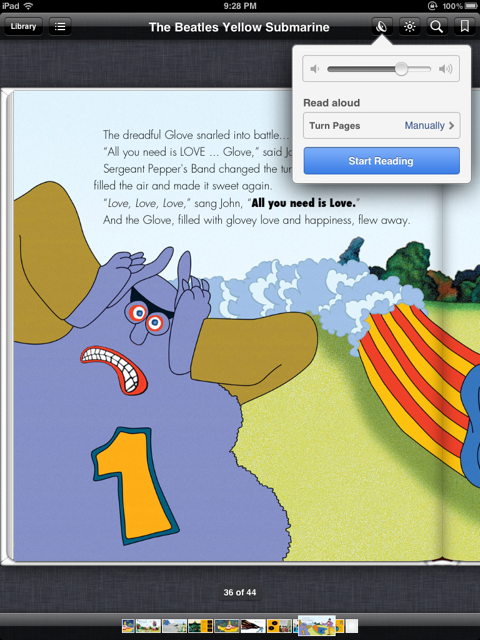
   On the Kindle I used, all books were .pdf versions of the print book.  The iPad readings were sometimes different, however.  Though the Jobs biography read much like a Kindle book, a version of The Beatles' Yellow  Submarine was quite a bit different. There was color and animation and sound resulting in a very different reading experience.  Here's a page with a drop-down that illustrates sound options:
 
Notice the control dashboard which allows you to customize your reading experience.
    This iPad book illustrates much of what I like in an e-book.  As they say in the tech world, it takes advantage of its ecosystem.  The iPad allows color and sound and animation, and the book embeds these functions.  Some will find reading this way more engaging, others more distracting.  I'm in agreement with the first group for this selection, though there are many books I've read where I would not appreciate additional bells and whistles.
   Educators are paying special attention to the promise of e-texts.  Many look ahead and see the day where students will not lug many texts from class to class but will rather carry one device housing all texts.  More importantly, to me at least, these texts will not be .pdf versions of existing print books.  They will be something different.  They will include embedded video, 3-D animated models, links to enriching web sites and interactive graphs.  Major publishers are hard at work developing these enriched e-texts, and some are coming to publication.  One leading edge publisher, Inkling, has a number of e-texts for academic use.  Their college-level Biology text includes the features mentioned above.  Here are two sample pages:


Notice Figure 3.13 above. Click on it to be brought to the animated 
3-D model of DNA (below) which offers a 360 degree view.


   Are iPads the reading device of choice? Not necessarily.  They simply do not work well outside; the glare overwhelms the image.  And they are noticeably more expensive than many other readers.  The battery life compares poorly to the Kindle.  But the image is crisp, and the ability to take advantage of multi-media content is impressive.  Again, there are advantages and disadvantages among devices.
   There is at least one other class of delivery device that grows in popularity daily: phones.  I know it stretches the imagination of some, but it is true that many  people find great convenience reading a book on their personal phone.  I've tried it and rejected it.  For my eyes, the small image results in eye strain after ten or fifteen minutes of reading.
   In a school setting, we also have to consider how texts are used.  They are more than books to be read.  They often become places where notes are written or content is highlighted.  Do e-texts serve the study needs of students? E-texts typically have the basic functionality a student would expect.  Highlighting text is simple.  Notes can be taken in the margin, though here, the process is somewhat cumbersome. Being able to search a word or term and find where it appears in a section, or in the whole text, is valuable.  But all in all, I gather that most students find a printed text more user-friendly, though there is plenty of varying opinions on this question.
   Where do I stand now?  On the topic of reading a book, e-books work as well as printed books.  Buy a book, take one out of the library, download one to your Kindle or iPad or other device; to me, it's all the same.  In the end, there is still the fundamentally satisfying experience of reading a book.  On the subject of e-texts, my conclusion is different.  Fully functional multi-media e-texts hold tremendous promise as an improvement over current print texts.  But we're literally at the very beginning of this transition, and for most subjects in most grade levels, good e-text choices are not yet available.  From what I hear, the landscape is likely to be quite different in the coming years.  I would think that five years from now, it will be commonplace for a student to access a text from a computer or other reading device and use that text to read, view and listen.  Text learning as a multi-sensory experience has the potential to alter the learning experience in profound ways. It'll be interesting to see how text content and use evolves in the years ahead.


Thursday, April 26, 2012

New Web Site, New Help Guides

    As we continue to work on our new web site project, Help Guides are regularly distributed to faculty to provide guidance as page management is learned.  I generally get good feedback about the Help Guides; readers find the instructions clear and the prose understandable.  And I appreciate that feedback!  But if a comment is forthcoming, most often it concerns the fact that the Help Guides are illustrated.  Teachers, like students, tend to remember, comprehend and retain content more reliably if it is visual.
     I'd like to use this posting to talk a bit about the illustrations in the Help Guides.  With a better understanding of how they are created, you might find opportunity to use the same types of illustrations in work you produce for students.
     Screenshots are pictures taken directly from your screen.  (The are also called screen captures and screen grabs.) You can take a full screen screenshot or through a cropping tool, retain an image of any part of your screen.  The last post in this blog was written after reading the Walter Issacson's biography of Steven Jobs.  Below, you see a full screenshot when the blog page is opened.


     In Windows 7, there are two easy ways to obtain a screenshot.  You can click on the "Print Screen" key on the keyboard.  By doing this, you've copied the image onto your clipboard, ready to pasted elsewhere.  One easy approach to managing this copied file is to open your PowerPoint program and have a blank slide ready.  Paste you image into the slide.  Now, right click on you mouse while the cursor is over the image.  One of the options is "Save as Picture."  Follow the prompts to create a picture file.  You could also paste the copied image into MS Paint, Adobe Photoshop or other image editing programs.
     The above instructions work well with Windows XP as well, but Windows 7 offers new software to users - a Snipping Tool.  It's found in the Accessories folder after clicking on All Programs near the start button.  The Snipping Tool allows you to copy all or any part of your screen.  Additionally, there are some basic editing tools that allow you to annotate your image.  You can highlight text and use a "pen" to write or draw freehand.  But it's difficult to create an annotated image that looks good.  See for yourself.


     A program I invested in years ago is Snagit, a TechSmith product.  This software is perfect for creating annotated screenshots.  It has an array of arrows, shapes, fonts and call-outs.  It it is simple to learn and easy to use.  Following annotation, screenshots can be managed in a variety of ways. Below, an example:


     Are screenshots different in the Mac operating system? Yes and no.  The keyboard commands for a full screen or cropped screenshot are different, but the end result is the same.  Using a Mac, Command-Shift-3 will take a screenshot of your desktop image and save it to your desktop.  Command-Shift-4 allows you to crop the image and save a partial image to your desktop.  And Macs come with Grab, software similar in function to the Snipping Tool. There are a variety of other keyboard commands that might prove useful as well. 
     And finally, it's easy to overlook some features of MS Word, our most frequently used word processing program.  In updated versions of Word on the Insert tab, you'll find several options that can be very useful in creating and annotating images for your document.  The Shapes option allows you to select a variety of arrows to point to pertinent information. The Text Box option allows you to create a free-floating box of text that can be fully formatted. And the Screenshot option allows you to create a full or partial desktop screenshot of any open window.  It's very handy.


     For almost anything you'd like to do on your computer, there are usually several ways to accomplish the task.  Screenshots are no exception.  Find an approach that is comfortable and you've got a great tool to add interest and depth to documents you are creating.


Thursday, April 12, 2012

Considering Steve Jobs and Apple

     I've recently completed Walter Issacson's biography of Steve Jobs.  I was interested to read it for several reasons; strong reviews coupled with a good word-of-mouth led me to believe that the book told an interesting story, and I have a personal and professional interest in the subject at hand.  
     The book really tells three different but inextricably connected stories.  Each story is rich enough and significant enough to be deserving of book-length treatment.
     One story focuses on the birth and development of the personal computer.  This tale begins in the early 1970's with a group of hobbyists centered in the San Francisco area.  This group of hobbyists tended to share an approach to computing.  For one thing, they wanted to build - and rebuild - their own devices. And they believed that what they discovered should be freely shared with fellow hobbyists.
     A second story focuses on Steve Jobs' unique vision of how the digital world should evolve.  Early on, he saw the personal computer as a tool that everyone would want, and need, in their homes.  The Apple II, still the singular success in the personal computer marker, is the result of that initial thinking.  Later, he understood that what others took to be the role of the computer could be housed more appropriately in other devices; the iPod, the iPad and iPhone.  A big part of this story is told through the ongoing debate between closed and opened digital ecosystems.  Jobs insisted that Apple develop a closed system that was fully integrated from design to manufacturing to software to marketing.  Virtually everyone else, and most notably Microsoft, favored an open approach.
     The third story is a personal biography of Jobs.  Particularly with his recent passing, this personal history has been much in the news this year.  He was a college drop-out. He partnered with Steve Wozniak to kick-start Apple using his parents' garage as "corporate headquarters."  He could be personally abusive towards others but always rationalized his mean-spirited behavior believing it helped others work better.
     Even after reading this thorough accounting of his business acumen and storied digital successes, it's hard not to be impressed by a list in Issacson's final chapter.  Here, he recounts Jobs' legacy succinctly through the products Jobs envisioned and developed:

Apple II - a personal computer no longer just for hobbyists
Macintosh - a computer that popularized graphical user interfaces
Pixar - Digital animation is popularized
 iPod - a reinvention of how we listen to music
iTunes Store - a reinvention of how we purchase music
iPhone - cell phones become mobile devices, a computer in your pocket
App Store - a whole new industry for computer programmers is invented
iPad - a new computing model based in portability
iCloud - No, Jobs didn't invent "the Cloud" but he did see the importance of syncing content over multiple devices

     As this list comes directly from Issacson's final chapter, it makes sense to quote some of his concluding thoughts about Steve Jobs. "Was he smart? No, not exceptionally. Instead, he was a genius. His imaginative leaps were instinctive, unexpected, and at times magical."
     Reading, I found myself think hard about one recurring theme in the book; open vs. closed digital ecosystems for products.  No popular product is as "closed" as Apple.  Their recent mega-seller, the iPhone, cannot be opened by the consumer, not even to replace a battery.  Even fairly non-technical phone users have felt comfortable replacing a battery, but with the iPhone, it's not allowed.  Similarly, many computer users want to be able to add memory or upgrade a hard drive without the expense of a professional service.  These types of adjustments are not difficult, but Apple makes them almost impossible.  The internal hardware of the popular desktop iMac, for instance, is only accessible by first removing the glass screen.  No other computer makes access more difficult.  Similarly, any App that is written for an Apple product can only be sold through the App store and must first be fully vetted by Apple.  The main App competitor, Android, is managed far more in line with a free-market model.
     Apple's approach limits the creative vision of what Apple devices can do to the employees of Apple.  Other manufacturers of hardware and developers of software license products to others and encourage third-party involvement.  In short, Apple's approach is completely dependent on Apple's ability to sustain it's uniquely successful integration of software, hardware and marketing.  Without Jobs, it's uncertain how the future will play out. The last time Apple was without Steve Jobs' vision, Apple was a struggling company facing almost insurmountable challenges.  
     Though unmentioned in the book because of timing, it's important to mention that Apple is not an unmitigated American corporate success story.  Part of Apple's story involves questionable work conditions in Chinese plants.  Though this story is still unfolding, it's clear that Apple's multinational presence carries with it an accountability that the company must confront.  And even more recently, Apple is under Justice Department fire for questionable practices concerning e-book pricing.
      As of this writing, Apple is making products that are wowing people around the world.  For now, this is Jobs' legacy.  When Jobs died, a young graphic designer in Hong Kong, Jonathan Mak, posted an image that quickly went viral.  It conflated Jobs and Apple's logo, a deft image summarizing a relationship that changed our digital world.


     Seems fitting to include his much-noted 2005 commencement address to graduating students at Standford University.  This is the official, full length version.


Sunday, March 25, 2012

Internet Browsers

    A recent issue of PC World reviewed a number of internet browsers.  The article was a reminder of the often confounding choices facing computer users.  It's true that an open marketplace offers many options, but just as often, those choices are accompanied by proportional confusion.
    Though the PC World article reviews six browsers, I'd like to focus on the four browsers most used at GSB: Internet Explorer, Firefox, Chrome and Safari.  But before we get into a discussion of specific browsers, here's a quick summary of browser history and performance features.
     Some time ago, when the internet was developing into an interconnected set of web sites that were created in different styles using different computer coding, it became quickly evident that a separate application tool was needed to view web sites and navigate to other sites.  This application tool became known as an "internet browser," quickly shortened to browser.  Browsers, like any software application, can become favored by users or fade from the scene: remember Netscape Navigator?  Today's browsers have evolved into multi-purpose tools that not only facilitate web browsing, but allow for organization through bookmarks (a.k.a favorites) and for efficiency through plug-ins.
    When considering which browser to use, there are a number of considerations.  Each browser has a certain "look" to it, and one may be personally preferable. Browsers load pages at different speeds, and faster is better.  But they type of page you are loading may determine the load speed for a given browser.  Browsers can also differ in security, ability to sync with other devices you are using and ability to customize graphic themes.  So while the core function remains the same - navigating to web sites - different browsers offer a different computing experience to users.
     Microsoft's Internet Explorer (IE) is very commonly used because it is the default browser shipped with the Windows operating system.  This means that if you have a PC and want to use a different browser, you'll have to go to a web site and download it, and then adjust a setting to make it your default.  In the PC World's review, IE ranked strong in terms of processing HTML 5 graphics and its security features, but lagged in terms of customization and bookmark syncing.  In IE, you can block sites from cataloging your browsing habits and you'll have the advantage of a Microsoft assembled list of sites with a history of tracking visitors even after they leave a web page.
Internet Explorer has a stripped down look compared to earlier versions.
     

     Mozilla's Firefox is another widely used browser.  It too will load graphics relatively quickly and is distinguished  by thousands of available plug-ins and add-ons.  These are very specific software instructions to allow to a function or design element to be added to the browser.  
Mozilla's Firefox: To the left, book marks are listed. They can be easily hidden to enlarge the site's viewing area.


     Google's Chrome  works well with JavaScript intensive pages.  This code is used by many popular sites such as YouTube and Facebook because it promotes quick loading speeds. One of Chrome's tricks to load quickly is to start loading a typed URL before you've clicked "enter."   Chrome also lets you close frozen pages without restarting the browser. Chrome's security is built around a feature called "sandboxing" in which your browser use is separated from your other computer files.  In this way, it is far less likely that web-generated malware will infect your personal files.
Google's Chrome supports many plug-ins and add-ons though the absence of a RSS feed could be an inconvenience.


    Finally, Apple's Safari is included in this post.  Because Safari is shipped as the default browser with the Apple OS in all Macs, it's used quite a bit a GSB, especially by student users.  It's notable for excellent security and syncs well with other devices using Apple's OS (think iPhone and iPad).  Tested against all three other browsers, it loads slow, but users like some of the built in display modes.  It's also very easy in Safari to block all cookies (those tracking software bits that tell web sites where you've been).
Apple's Safari, like any browser, can have any web page set as a Home Page.  Here, www.google.com is the home page.


    If you've made it this far you certainly may be wondering why four screenshots have been added to this posting. they seem about the same, and are totally recognizable as Google's search engine site.  The four screen shots are a reminder that these four browsers are far more similar than different.  They all have an identical core purpose - to navigate to web sites - and each does the job well.  That said, by experimenting a bit, you may find you prefer one over another.  And one last caveat; it is always advisable to run the latest version of a browser.  The latest version will include securing updates and as well as features that allow the browser to fully display the content on web sites that are evolving.  Generally, if you're running a browser, you'll be prompted to update your version.  You should go ahead and update your preferred browser for the best web browsing experience.

Want to learn more?  Click on a link below.

Tuesday, February 28, 2012

Enriching Classroom Learning with Technology - Part II (with an emphasis on Google Docs)

     My last post featured technology initiatives in the Lower School and Upper school.  In the LS, kindergarten and third grade students were learning about penguins, and the project was facilitated by SMARTBoards, Google Earth and Google Maps.  In the Upper School, students in science class were writing about Astronomy topics using a blog platform, and this approach enabled interactive learning with other students. 
     In the Middle School, Brett Mershon's Language Arts students use Google Docs (short for Google documents) as they refine their writing skills.  One project this year asked students to create a story with dialogue built on a visual prompt provided by Brett.  The learning goals included 1) the creation of short fiction and 2)  improving grammar and punctuation skills.  Students wrote their stories using the word processing feature of Google Docs.  Brett was easily able to access their writing and comment on areas of strength and weakness.  Students looked over the comments and revised stories as needed.
     Nothing very new, right?  Well, using an online, collaborative tool like Google Docs offers a few improvements over a more traditional approach, according to Brett.  With Google Docs, writing can be shared with many individuals.  So if an assignment is built around peer-to-peer critique, Google Docs works especially well.  And if the writing is a joint effort (an earlier assignment had students pair up to write stories together), Google Docs is invaluable.  As Brett said, "Google docs offers some of the advantages of a face to face writing conference without the constraints of having to figure out a meeting time that works."
     Google Docs is more than just online word processing.  Also included are capabilities to create a spreadsheet, a form, a drawing and a table.  Each of these applications is fairly full featured so that, for instance, with word processing, you can change fonts and formatting much as you can in MS Word.  But with Google Docs, your document will be saved on a remote server (in the cloud), always accessible with internet access. And importantly, you can decide who else can access the document and you can control access (e.g.: read-only or full editing rights).
     A feature of the Forms application allows responses to be downloaded into a spreadsheet for easy manipulation.  In one assignment using Google Docs, Brett used a combination of word processing and a form to help students learn more about the Great Depression prior to reading a book on the topic.  She created a review sheet of terms in the word processor and a form using a multiple choice format to help students get oriented to the topic.  Using the review sheet, students completed and submitted the form.  results were easily tabulated for each student because they appeared in an easy to read spreadsheet.
     When the Upper School wanted to solicit student preferences for Unit registration, a Google Form was created.  The graphic below shows the form as it's being readied for publication.
     Students get a link to the form, complete it and click the submit button.  Results are immediately available in a fully editable spreadsheet which allows information to organized and tallied.  For the Unit registration, the spreadsheet looks like this:
     Interested? Want to get started? You'll need a Google account if you don't have one. After signing up, just go to docs.google.com, log in, and select the type of document you'd prefer.  As mentioned, you can decide whether or not to share your document.  
     This brief video will provide an overview:

     As you accumulate a library of files, you'll be able to manage them in Google's easy to use interface:
     Our Middle School Language Arts program is using Google Docs to facilitate instruction and learning.  If you're interested in exploring the possibilities of Google Docs for your classes, feel free to get in touch.
     

Thursday, February 16, 2012

Enriching Classroom Learning with Technology

         Throughout the curriculum and across divisions, technology is being used creatively by teachers to enrich learning for students.  I’d like to highlight a couple of current initiatives in the hope they will inspire readers to explore possibilities.  As teachers, our fundamental goals of having students learn and grow is unwavering.  But what can change are the tools we use to reach those goals.  As time passes, an increasing array of interesting tools are available that promote excitement, collaboration, independence and achievement.  The examples below point to the possibilities.
          There’s a great project in our Lower School that is the handiwork of Sara Swartz and Elise Smith.  The idea was hatched in Summercore, the summer technology program GSB hosted in June of 2011.  Sara and Elise spent some time learning Google Earth and Google Maps, web-based geography and mapping programs.  They then created a learning program on penguins that emphasized natural history, geography and mentorship.
           The program links Sara’s third graders with Elise’s kindergarteners. Students “travel” to different areas around the world to locate different species of penguins.  SMARTBoards facilitate learning, so as a kindergarten student taps the SMARTBoard third grade helpers read the information that appears on a given variety of penguin.  These penguin varieties are located on a world map.  A tap on New Zealand, for instance, might bring up a picture and text of the Little Blue Penguin.
Third grader working with a kindergarten student at the SMARTBoard

 
            Third graders are working with kindergarten students as both learn more about world geography, penguins and natural history. Third graders are also gaining a sense of responsibility as they help younger students, and kindergarten students are understandably excited about working with older mentors.
           In the Upper school, Larry Bostian is using blogs to engage his Astronomy students.  As a long-time Astronomy teacher, Larry has always challenged his students to learn the traditional content of a high school Astronomy course while at the same time keeping up with an ever-changing field.  Science is expanding our understanding of the universe, and students of astronomy need to stay aware of new discoveries.
          Larry is using blogs to help students stay up-to-date.  Every student has a blog, hosted either by blogspot of tumblr. Students are charged with keeping their blogs active with regular postings about astronomy news and information.  Student blogs include embedded video and photos.
          For years, Larry has had students reflect on astronomical discoveries through writing assignments.  Though they still write their thoughts, he feels they are now more engaged because they are producing work that is publicly available and because they control the blog’s design.
Screenshot of part of a blog created for the Upper School Astronomy class
To see the whole blog, go to http://astronomy3.blogspot.com/ 

Tuesday, January 31, 2012

5 Favorite iPad Apps.....at least for right now


5 iPad apps identified for review
      Part of using an iPad involves hearing about new apps and trying them out.  And as a user, I'm really attentive to two categories of apps: those that are personally interesting to me, and those that I'm evaluating for school use. This means that for me at least, my iPad usage is constantly evolving.  

     I'd like to use this post to highlight five iPad apps that have captured my attention.  Though one might be categorized as an "educational" app, all five are compelling because they work well and I find them useful.
     The first is an app called Living EarthThere's nothing especially fancy about what it does.  It's essentially a clock with a timer and a graphic of an earth spinning in space.  But you can speed up and slow down the earth, get a satellite view of clouds and weather and set the globe to your current location.  The graphics are excellent.  It can serve as an alarm clock, and can wake you to your music library. It cost me $1.00.

      
     Another app that I like is HBO GO

      
     In order to use this app, you'll need a television subscription to HBO.  With your HBO subscription, HBO GO allows you to stream HBO content - movies, television shows, specials, documentaries - directly to your iPad. It's searchable, so if I'm looking to see that documentary about MacDonald's getting sued over a cup of coffee that was too hot, I can search it and watch it directly on my iPad.

It's a bit hard to see, but under the H category, the last listing is Hot Coffee, the target of the search.


 Remote is an app I use daily, and it continues to amaze me a bit.  The app is a utility, working with another system to make it work better.  In my house, I have an iTunes library of music that I can wirelessly stream to sets of stereo speakers in my living room and kitchen.  With the Remote app, I can control iTunes settings, such as music selection and volume, from my iPad. this means that I can start to play music from iTunes on my computer, but then I can have the iPad in any room and change music selections and settings.  It's a remote control for my stereo system. It works perfectly.  The same app can be put on an iPhone or an Android phone. 

 Here's my iTunes library as seen on the Remote app
     Art Authority  is an art museum app.  I first got this app when I was reading a book that made frequent reference to works of art.  Rather than ignoring my ignorance or constantly getting up to find information about an art piece, I downloaded this app and had an instant reference source available.  Since then, I've used this app to learn more about art and artists from different eras and from varying locales.  The graphics are very good, and the information finds the preferred middle ground between "too superficial" and TMI.  Current price: $5.00.  


The romanticism section includes these "galleries:" American, German, English and French and an Overview section.
       Zite is one of my favorite apps, at least for now. It's a fully customizable magazine in which you select topics of interest to you. For any topic - some of mine are Architecture, Music News and Commentary, Arts & Culture, Technology, College Basketball - Zite culls print and online sources for articles of interest.  From years back, you might remember Utne Reader. It's similar in its eclecticism and general quality of selected articles. I always find something of interest in reviewing Zite's daily updates.  

Zite allows you to choose your magazine's sections from a menu, or add your own sections.
The home page of my Arts and Culture section. Each article headline is a link to the full article. Each section will contain about 20 articles culled from a variety of sources.
     Every iPad user could create a list of favorite apps. And lists will change over time as needs change and new apps are developed.  But for right now, the apps above have captured my attention.
    
     PS: Five more iPad apps for the Honorable Mention list: Gameface, Scrabble, Wired Magazine, NY Times, Stack the States. 


Tuesday, January 17, 2012

Technology's role in Facilitating Collaborative Learning

     Over this last week-end, I read with interest a story in the New York Times.  Published on 1/16/2112, the story is titled "Split by Race and Wealth, But Discovering Similarities as They Study Steinbeck." The article describes an 8th grade project that has classes in two neighboring schools - one in Plainfield and the other in Westfield - reading John Steinbeck's Of Mice and Men.
     The story caught my attention for a couple of reasons.  I went to elementary school in Plainfield, so there was a personal connection to the locale.  It was definitely a long time ago, but still, it's hard not to pay extra attention when reminded of old haunts.  More significantly, I also was interested to see how technology was being applied to this collaborative learning project.
     The Times article describes two middle school classes, one in the more tony Westfield and the other in the economically-challenged Plainfield, following a parallel curriculum in the reading of Steinbeck's novel.  The classes read the book on the same schedule though in-class conversations differ.  The article points out that teachers with their students will focus on characters and plot developments that resonate in their respective lives.
Y
Eleanor Hemphill, in back, talking about the novel at Cedarbrook K-8 Center in Plainfield, N.J.
     Though this jointly read book project will culminate in visits to each others' schools, the Times article points out that along the way questions and insights were shared by students via Wikispaces and Skype.  Unmentioned, though likely true, is that students at the schools connected via Facebook as well. Technology has a unique ability to facilitate collaborative learning because so many of the traditional barriers (e.g.: cost, convenience, asynchronous schedules) to distance collaborative learning are eliminated.  But it's interesting to see that applied technologies are not the center of the article.  In fact, they barely warrant a passing mention.  It's a sign of how much social media sites and other technology tools have become part of the way people collaborate.
Matthew Kalafat discussing “Of Mice and Men” at an intermediate school in Westfield, N.J.
       The Times piece clearly shows that this project was created with specific goals in mind.  Yes, students would be reading Of Mice and Men  to become familiar with a classic American work.  But as one of teachers states, “If you become experts in Steinbeck, beautiful, but that’s not my goal,” Matthew Kalafat, a Westfield teacher, told his class of 13 students — 11 white, 2 Asian — holding well-thumbed hardcover books in first period the other day. “This is just a tool to get us to understand our world.”
     The article strongly suggests the students are learning more about their world.  Technology in the form of Wikispaces and Skype, and perhaps in the form of Facebook and an e-reader, is helping teachers and students to reach goals.  And that's the true promise of technology in schools; it's a set of increasingly powerful tools that can help teachers and students reach learning goals.

(Note: Pictures and captions from NY Times "Split by Race and Wealth, But Discovering Similarities as They Study Steinbeck" 1/16/2012)