Thursday, October 29, 2015

Facing History and Ourselves

   I may be involved in technology work now, and I did spend considerable time in the college guidance world, but my professional roots are firmly grounded in the teaching of history. It's how I started as a teacher out of college, and over the years, I have continued to find ways to learn about and teach history.
   Back in the 1980's, if I remember correctly, I first became aware of the Facing History and Ourselves organization as a classroom resource.  There was a book (also called Facing History and Ourselves) designed to help students learn about the Holocaust, but its approach was different from other textbooks.  As the organization's web site states: 

   What ignited Facing History and Ourselves in the beginning is still what guides us today. The educator’s most important responsibility—our gift to society—is to shape a humane, well-educated citizenry that practices civility and preserves human rights.
    At its inception, Facing History was one innovative course taught in two classrooms. In practical terms, it was a history class about the ideas and events that led to the Holocaust, but its beyond-the-textbook approach and methods made it about far more. Through discussion, character exploration, primary source material, and group exercises, students saw the tragic events from every perspective. In the process, they came to understand that history is the collective result of every individual’s thoughts and actions. They learned not only history, but also the critical thinking skills required to make good choices.


   Early on, then, the Facing History organization was committed to using a variety of approaches to reach students and get them thinking more deeply about content that matters. Fast forward about 30 years and the Facing History organization is still using a variety of approaches as it presents curricula of importance. But this is 2015, so naturally it is their web site - Facing History and Ourselves - that provides the platform for innovation.
   A fine example of the way they are using technology to present content that encourages reflective thinking about significant issues is their lesson set on the connection between music and the American civil rights era of the 1050's and 1960's.  The lessons are divided into four parts. The first lesson, Music and Identity, utilizes the Sam and Dave song Soul Man to stimulate conversation. The song affirms the importance of strong self-identity. 
  The second lesson, Breaking the Racial Barriers, takes a look at Booker T. and the MGs, a racially integrated band. In spite of significant pressure at the time to operate as a segregated group, the MGs retained their multi-racial composition. 
Booker T. and the MGs
    The third lesson, Respecting Self and Others,  examines the need for both self-respect and respect from others through a couple of Stax songs. And the fourth lesson, Music and Social Change, uses a Staple Singers song to help students consider the ultimate goals of the civil rights movement.    
Otis Redding
The Staple Singers
Why highlight this lesson set on this web site? I think it provides an excellent illustration of how technology can serve curricular interests. The videos, the songs and the downloadable documents all provide highly relevant materials to any student seeking to understand the connection between music and the civil rights movement. In fact, it's hard to think about teaching this material effectively in the absence of technological tools.     I hope you might find some time to explore the lessons of this site just for personal interest. But I also hope you'll use this site as a reminder of the ways in which technology can serve curricular goals. 

A few video links from the lessons:
   The origin and meaning of "Soul Man" - an interview with songwriter David Porter
   Booker T. and the MGs talk about their band and their music
   Stax recording artist William Bell discusses Otis Redding's "Respect"
   excerpt from Respect Yourself: The Stax Records Story -  featuring The Staple Singers
 

Saturday, October 10, 2015

Putting Ed Tech in Perspective


   Last winter, I had the opportunity to speak at the annual NJAIS conference for trustees. My presentation gave those in attendance an overview of how technology has shaped our schools. The presentation centered around several distinct themes.  
   During the course of this year, I'd like to use this space to re-visit some of those themes.  The first theme is that examining the technological systems, uses and decision-making in a school setting is complicated.  I used schools' preferences for equipment and operating systems as a case in point. To illustrate, I imagined three schools; call them A, B & C. Each has a different approach to it's technology environment.    
   School A first got serious about purchasing computers with the introduction of the Apple IIE in 1983. The early to mid-1980's was the time-frame when many NAIS schools first saw computers on campus.  They tended to debut in offices, and in the following years, also became a fixture in the then-new computer labs.  School A had some Apple enthusiasts on campus and they promoted Apple products as "better designed, more intuitive to use and oriented towards an education setting." 
  
  
  Over time, a more complete infrastructure began to emerge on campus that included printers, network servers and other important hardware and software components.  It was all built on an Apple-friendly platform.  As often as not, particular products were purchased from Apple because their operating systems demanded compliant peripherals.
   Visit School A today and a school rep will proudly declare "We're an Apple school. Our hardware is state-of-the-art. Computer viruses have never been a problem.  Our students get MacBook Airs (or iPads) and we're building classroom learning environments around Apple TV.  We have the best technology environment a school can have."  
   School B also made some initial computer purchases in the early years of the 1980's. A business manager with eye towards the future realized that computers had great applicability in the business office.  She also saw promise for the machines in the offices of admission and development.  Not surprisingly, given her business background, the school purchased a few IBM PCs. This model, first introduced in 1981, quickly became a company workhorse and a steadily growing presence in schools like our School B. Not unlike School A, subsequent purchases of hardware and software were driven in large part by the presence of these IBM machines.  In 1987, when Microsoft first began its rapid ascent on the back of its Works productivity suite, users of IBM PCs and other DOS-driven machines had a neat fit between software and hardware.  That further created an environment built on a PC foundation.

   As the '80s gave way to the 90's, numerous other manufacturers got into the PC market because a new operating system, Windows, licensed by Microsoft, was made available to anyone for a fee. This was in direct contrast to the Apple operating system who had a more proprietary approach.  So a campus that began its computing environment with IBM PCs could easily grow its hardware and software offerings. That more complete choice of computing tools was very attractive to key decision makers.
   Visit School B and a school rep will discuss the virtues of their computing environment.  "We're educating our students to take their place in a world where PCs outsell Macs by a ratio of about 20 to 1. Students need to be conversant with the Windows operating system as an essential workplace skill.  And we're able to stretch our technology dollars further because we're not held captive by Apple's hold on its operating system. And one more thing; we can now do anything on a PC that an Apple user can do on an Apple. The days of Apple's edge in design and creativity are long gone.  In fact now, it's the opposite. Being tied to Apple is more like being tethered to a monopoly."
   What about School C? It's likely that in the early '80's, School C's initial foray into computer purchases were built around the IBM PC. Over time, the PC presence evolved and grew in much the same way as it did in School B.  But somewhere along the way, some Apple products were purchased and created a beachhead for an Apple presence on campus.  The products might have been iMacs, the purchases driven by an Art Department.  A publications person might have pushed for a MacBook Pro laptop to take advantage of the Apple publications software and enjoy the flexibility of a laptop.

   Over time, PCs continued to be the major computing presence on campus, but labs of Apples appeared. In time, these Apple machines could be "bootcamped," or imaged to open in either a Mac OS or Windows operating system.  School C was a dual-platform school; it supported two operating systems.  Over the last several years, as students began to show up to school with a mix of Apple and PC devices, there was an infrastructure already in place that seemed to naturally sync with this variety of hardware and software products.
   Visit School C today and a school rep will describe the school as a "dual-platform, BYOD" environment.  Dual platform refers to an infrastructure supporting Mac and PC machines. BYOD stands for Bring Your Own Device. The rep will proudly say that "after graduation, our students are certain to find themselves in technology environments that are varied, and inevitably new. The best prepared students have broad exposure to different systems and are ready to learn whatever comes next."
   A bit confused? That brings us to one of our themes: It's Complicated. Technology offers choices. People have opinions.  In most cases, there is not one clear answer. The result is that technology decision-making is complicated. 

Tuesday, September 29, 2015

The Middle School Learning Commons - Part 2

   In the first part of this series, the library space was highlighted as one-half of the Learning Commons.  In this second part, we'll take a look at the MakerSpace.
   MakerSpace areas have gained traction as hands-on learning areas. Some emphasize digital learning, some emphasize more traditional craft work and some are all-purpose spaces accommodating a wide range of learning activities. Our MakerSpace emphasizes digital learning, though leaves room for other types of projects.  A good example of the digital learning that will occur in our MakerSpace involves Arduino Boards.  These mini-processors allow students to learn basic coding and enable students to literally see their code translate into actions.  Arduino Boards can be programmed to complete functions such as make a light blink, play a tune, read a switch and create a LED graph. The MakerSpace is well stocked with Arduino Boards and associated peripherals.
   Though the space is monitored by Lia Carruthers, any MS teacher can schedule class time in the MakerSpace.  On a weekly basis, Carrie Petkiewich is bringing her Computer Education classes to the MakerSpace as well. Clearly, right away, the space is getting used.
   I dropped in on the MakerSpace and happened into a lesson Frank Corrado led involving Google SketchUp (design software).  The students were using the new set of Surface 3 tablets to create architectural renderings.


Students, using their Surface 3 tablets, work on their designs. If needed, any of the devices can send a print job to the wireless printer in the room.
   Frank used his tablet to stream instructional materials to the TV on the wall.


A 55" flat screen LCD TV offers excellent resolution.
      Other features of the room include a couple of 3D printers, plenty of counter top and storage space that includes a sink, a cart full of supplies and a printer.

Above, two 3D printers sit atop a counter top already filling in with projects.
The cart offers plenty of supplies for student projects.
   

Thursday, September 24, 2015

The Middle School Learning Commons - Part 1

   This is the first of a 2-part series on the new Middle School Learning Commons.

   After a summer's worth of renovation work, a new space has been brought to life in Conover.  It's called The Learning Commons and features two distinct areas. One area serves as the Middle School library. (The other area, the MakerSpace, will be featured in the next post.) After years of doing without, grades 5-8 now have a collection of books and research materials housed in a space specifically designed to serve its needs.
   The library has a number of distinct elements. There is, of course, shelving full of books and other related materials. Most of this collection can be checked out to students or faculty for use outside of Conover.  It's clear that the Middle School has quite a few readers; works of fiction are "flying off the shelves" according to Librarian Lia Carruthers.


  The library also has a SMARTBoard that is available for instructional use. Research projects are often centered in library research, and the Middle School now has an well-appointed facility for class instruction.


   Lia's desk is in the library space, but it is positioned for a sight line into the MakerSpace, the other area of the Learning Commons. She's seen in the picture below configuring several of the twenty Surface 3 tablets that are used for both research and MakerSpace projects. Just beyond her desk, you'll notice the mobile cart that is used to charge the tablets and transport them to classrooms in Conover as needed.  


In the picture's background, sliding glass doors separate the library from the MakerSpace.
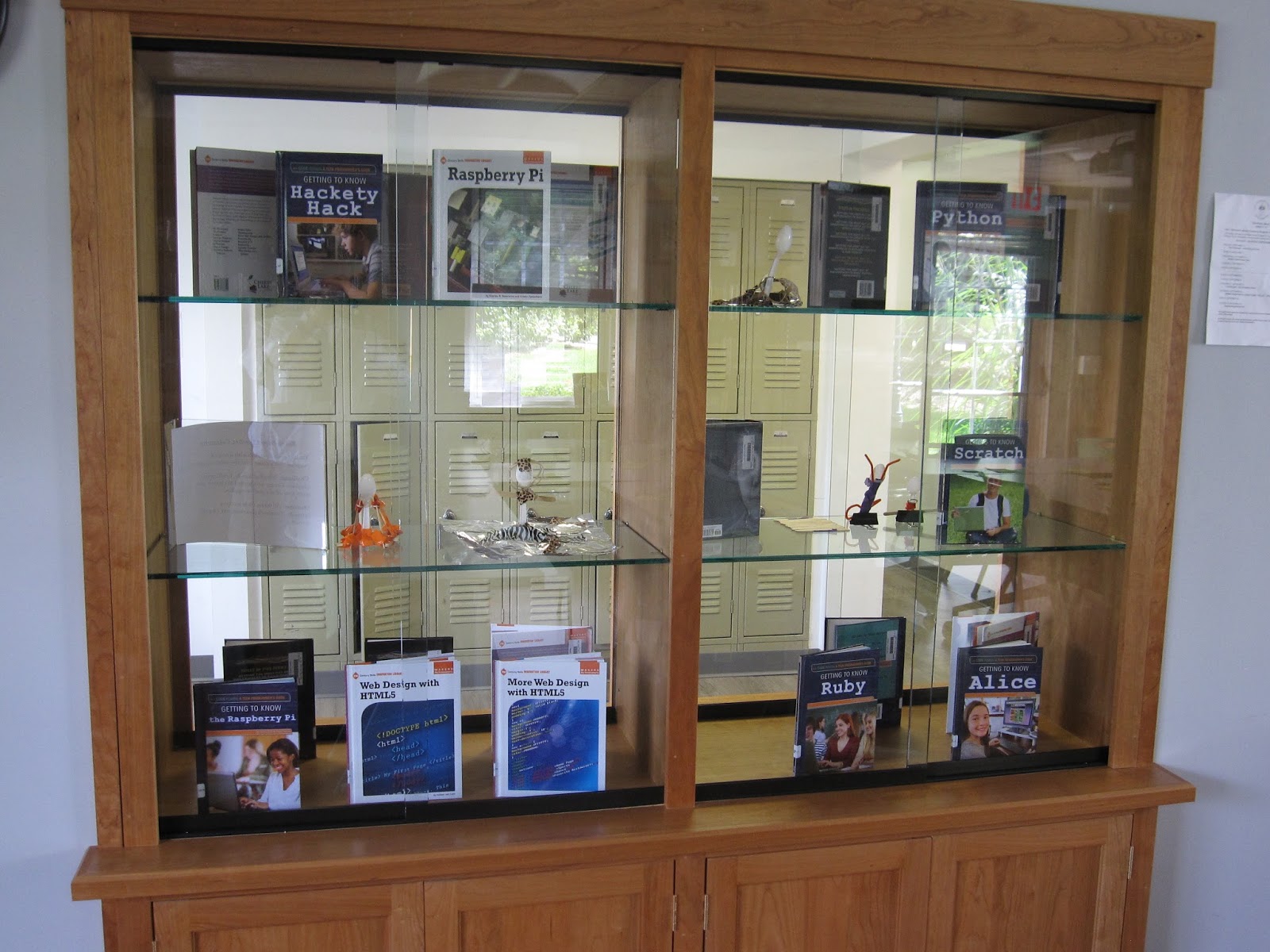
   One last noteworthy feature of the library is the built-in display cabinet fashioned by Bob Ort.  The design allows for onlookers in the exterior hallway or from within the library to see exhibited books and materials.


   Coming up in the next post: a look at the MakerSpace.

Friday, September 11, 2015

Old Needs, New Approaches

   Over the last couple of years, two new approaches to technology usage have gained a foothold at GSB. Both are welcome changes because they effectively address user needs while offering cost effective, environmentally sound solutions. Neither are particularly dramatic, yet both offer a path towards a more sensible technology environment at school.
   The first approach involves document printing. It's no secret that printing is expensive and exacts an environmental toll. I've learned to view printers as devices designed to sell ink.  In that regard they're very successful. It's impossible to say how many printer cartridges we as a school purchase in the course of a year. That's because purchasing is not centralized. But even a casual observer knows that we go through quite a few cartridges.
   What if we could print with equal clarity, but each printed sheet would cost less and carry a reduced environmental impact? In fact, we can we do just that and we've been moving towards increasing the number of people utilizing this new, improved approach to printing.  Simply put, it involves sending print jobs to a copying machine instead of a printer.
    How can you print to a copying machine?  First. the copying machine needs to be networked. Many, but not all of our copying machines are now networked. Second, your computer needs to be configured so a copying machine shows up as an available device as you create a new print job. Then, it's as simple as selecting the copying machine as you access your print editing screen, and click on Print.
   Are there downsides? At this point, two are commonly apparent. One involves convenience. Printers typically sit on user's desk, so as print job is completed, the paperwork is instantly available. Printing to a copying machine usually involves a walk to a copying machine to retrieve a job. (It's also worth noting that occasionally, a printed document contains sensitive information. Users could be understandably reluctant to have sensitive documents printing to a remote copying machine.) Another downside involves color. All our networked copying machines are back and white.  If a user wanted to print a color document, a traditional desktop printer remains the sole solution.
   Both the convenience and color issues point to the fact that this approach to document printing has gained traction in school offices, but classroom teachers continue to find the downsides to be significant impediments.  In the future, bringing color copying machines to areas convenient to classroom faculty may provide us with a more sustainable approach to printing. And making an effort to network all our copying machines - which can involve significant infrastructure work - remains on the school's to-do list.
   At the outset of this post, I mentioned two new approaches to technology usage. In addition to how we're printing, there's also a change to how we're viewing. Over the last ten years as digital technologies became a part of how we presented and viewed information in group settings, digital projectors were the devices of choice. At GSB, they appeared as stand alone devices, as ceiling mounted classroom fixtures and as integrated devices in SMARTBoard systems.  
   In the last year or two, however, we've begun to change our approach.  LCD TVs are now beginning to replace projectors as new spaces are renovated for new uses.  These TVs are now cheaper than projectors for a similar screen size and offer significantly better clarity and color reproduction.  They can be directly cabled to a computer via a HDMI line for excellent screen duplication.  And using a duplication system like Apple AirPlay or a Microsoft Wireless Display Adapter, users can wirelessly mirror their computer displays to the TV.
   Two recent examples are in the Middle School Learning Commons and the Upper School photo lab. Both spaces were newly created over this last summer.  In the MakerSpace section of the Learning Commons, a 55" flat screen TV wirelessly connects to the Surface 3 tablets students and teachers are using via the Microsoft Wireless Display Adapter. In this way, instruction can be provided to groups and work can be shared by students and faculty alike.
   In the new photo lab in downstairs Founders, the 55" TV connects to all the iMac desktops in the room via Apple AirPlay.  Again, the technology provides the system for content delivery by the teacher and for work sharing by all class members.  


Old needs, new approaches: a brief video illustration featuring Lia Carruthers and Dave Pasquale 
with a cameo appearance by Lauren O'Leary

Sunday, August 23, 2015

CryptoWall

   Last week, a viral attack on a GSB user's computer precipitated a chain of events that kept a variety of people very busy for several days. To say that we were in "crisis mode" would not be an exaggeration. To understand why, it's helpful to first consider computer virus types.
   Computer viruses can be categorized into different types. One type, more prevalent in the early days of computing, might be termed leaving a calling card.  This type of virus, when successfully deployed to an unsuspecting user's computer, causes unusual computer behaviors.  Turn on your computer and suddenly there is a message on your screen: "Hi! You've been hacked!"  Often, the hacker's main goal is to show that he or she is crafty enough to circumvent installed security software. 
   A second type of virus might be called commercial messages whether you want them or not. These viruses have become quite common and we've had our share get through our anti-virus software and land on people's computers.  A frequent characteristic is the random pop-ups users experience.  Often, there is a commercial element involved. The hack is designed to make you aware of a product or service and buy it.
   A third type of virus might be called put the cash in a bag. These viruses are propagated by criminals for the express intent of stealing money. Some of these viruses will look for valuable information (e.g.: social security number, bank account information, web site passwords, credit card information) and transmit it to the hacker. That information is used to steal funds or use accounts for profit. A second category of this third type of virus is called "ransomware."  If a ransomware virus infects your computer, your files will be encrypted and the hackers will demand a ransom to provide an encryption key. Without the key, the files are useless.
   A GSB user's desktop was infected with a ransomware virus called CryptoWall. What the user saw were the files, all with a strange .aaa file extension.  A pop-up on the screen gave explicit instructions about how much money it would take to get a key to access the files, the amount of time allowed by the criminals and the method of payment. In this particular case, $500.00 was demanded, payable within a week in Bitcoin. There were specific instruction about how to convert US dollars in Bitcoin currency.  If payment was not made in the specified time period, the cost of the key doubled to $1000.


The ransom demands as they appear on user's screen.
   A NY Times article earlier this year gave a first person account of a CryptoWall hack. It's a quick, interesting read. And the FBI's web site has information as well.
   We first learned about the hack late Thursday (8/21) morning.  Immediately, the computer was evaluated.  The desktop files and all other files on the hard drive were encrypted.  An attached external hard drive also was completely encrypted.  And alarmingly, the various server drives this user was mapped to were also encrypted.
   As a technology department, we've dealt with many computer viruses over the years.  I would guess 5-10 users a year have a viral infection on their desktop. To date, none have ever gone beyond the end point hard drive and all have been successfully resolved. I believe all have been the second type as described above.
   To see files encrypted on the server was cause for alarm. Clearly, we were dealing with a more potent strain of virus that we had previously seen. And of course we worried that perhaps the encryption could spread, further compromising our server content.
   We immediately isolated the infected computer from the network. Larry went to work evaluating the file damage and looking for latent threats. A decision was made to conduct a double-blind review of the health of the server. Ryan as well as an independent sub-contracted software engineer scanned our server drives for problems. Most important was an ability to confirm there were no "trojan horses" in the system, viruses that lay low and activate at a later date. Our independent review was conducted by Ivan of Aspire Technology Partners. By morning, both Ivan and Ryan were ready to issue the all clear sign about further threats.
   Early on, I reached out via the NJAIS sponsored listserv to my colleagues. Our NJAIS Technology listserv has proved an invaluable tool to share news and solicit advice. In this case, I wanted to do both. As I've come to expect, my colleagues were unfailingly helpful and sympathetic. It's a reminder that professional networks can prove very useful when addressing a variety of challenges.
   The next step involved restoring encrypted files.  CryptoWall software is very sophisticated and files are not easily "freed" from their hostage state. That said, tools are available, often provided by a community of hackers who see themselves as the good guys in a fight against the criminal use of software. But for our server files, a far more easy solution presented itself. The corrupted files could be deleted out of the server drives, and the affected drives could be reimaged to a pre-infected version. When a server is backed-up daily, past versions (to a limit) remain available as file back-ups. Ryan saw that going back to Tuesday, 8/19 would yield an uncompromised version of each file.
   If any files had been changed or added to a server after 8/19, that data would be lost. Fortunately, given the time of year and the particular server drives affected, we're confident content lost is negligible. 
   What about the user's desktop files and the files on the external hard drive? S0 far, a small percentage have been restored. Efforts will continue with no guarantee of success. We'll know more over the next few days. 
   What's a computer user to do? Is it just inevitable that a virus infection will wreak havoc on your computing life at some point? In fact, some common sense tactics are remarkably successful. First, though, a user needs to understand how computer viruses are transmitted. There's really two main ways: email and web sites. 
   If the virus is in an email, it is almost always in an attachment or a link. Clicking on an affected link or attachment and you've unleashed the virus.  The key to safe computing is looking before you click.  Almost always, the email looks a bit fishy, a bit off. Perhaps there's a strange group of unrelated people in the address window. Perhaps the link is completely unfamiliar. Perhaps the text of the email strains credibility (banks in Nigeria, anyone?). At any rate, use caution and judgement and DO NOT click on suspicious email links and attachments.
   If a web site carries a virus, it is generally embedded in an ad on the site.  Reading an article the other day, the author mentioned that Yahoo and weather.com have a higher than average rate of infection on their ads.  The trouble is that hackers creating viruses embedded in ads are very good at disguising their work. Everything looks perfectly normal until your click unleashes a virus. You may not know about the infection until a day or a week later so it's often difficult to trace a virus to its source.  It's difficult to advice computer users to never click on an ad, but be aware that you do so at at least some risk.
   In the case of the GSB ransomware attack, we have reason to think the user's external hard drive was already carrying the virus when it was plugged into the desktop. There is file evidence to suggest it though we're not certain. This means that it will be very difficult to ascertain the source of the virus.
   So exercising caution while on the web is critical. So is operating in a computer environment that defends against attacks. Clearly no defense is 100% effective - there's an ongoing cat and mouse game between hackers and anti-virus developers - but keeping up-to-date with software installs and updates helps. At GSB, we filter the Internet, adblock and install anti-virus software on computers to supplement operating system software. Obviously, those layers of protection were not enough. We'll be looking carefully at our current protocols with an eye towards more complete protection.
   Perhaps the single most important step a user can take to protect against catastrophic loss is to back up files.  A user at GSB has several back up options. Once a file is created, it can be copied and saved to another location on the computer's hard drive. One copy might be on the desktop, one copy in the Documents folder. This form of back up is not effective and should not be used. A second form of back up is to create a file on the desktop and save to an external hard drive or a connected thumb drive. This form of back up is better, but other options offer far more security. A third option is to save the second file copy to a server drive.  This is a good option, though this post clearly suggests it is not without risk. Still, it's safe to say that server back up is a strong option given the track record of success. The last option is the best: utilize OneDrive or other cloud storage as a remotely hosted, independently located site.  All GSB users have OneDrive storage access and used in combination with a file saved on a desktop, server or external drive, a user can feel confident about the content security. Users who do not back up files of value are living dangerously close to edge.  Please, back up files you value.


Thursday, May 28, 2015

Drones, Aerial Photography and GSB

GSB looking north into Morris county - May 26, 2015
   This week, Greg and Josh from SkyVue were on campus with a drone.  Drones, of course, are pilotless aircraft. They can be be incredibly useful but are not without controversy. To some, they are the very embodiment of technological utility. To others, they represent the worst of technology: the soulless machine.
    Safe to say SkyVue's drone was making a positive contribution.  The drone's mission was to photograph campus from an aerial perspective. With a high resolution camera mounted to the remote controlled drone, a set of photographs were generated that offered crystal clear panoramic shots of our campus.  On a beautiful day in May, GSB really shines!

SkyVue's drone, getting ready to take flight.
    But before we take look at our drone and it's work, you might be interested to consider the impact drones are having in fields as wide ranging as commerce, agriculture and the military.  The weekly news program 60 Minutes made a splash earlier with a story about Amazon's plans to use drones to deliver products. The story was posted on the cbsnews site and includes a link to the 60 Minutes video.  And more recently, the New York Times ran a story on farmers using drones to do flyovers so they could assess the state of their crops. Weed, water and harvest management are all more efficiently accomplished using pilotless craft outfitted with a camera.  But their actions are often in violation of FAA regulations, and this has set off a debate over commercial drone regulation. Over the winter, a New Yorker piece took a close look at the use of drones by the military.  An increasing number of military air missions into combat zones are done by pilotless craft. Often the personnel at the controls is housed thousands of miles away, joystick in hand. This relatively new form of air strikes leaves some to wonder how warfare is evolving.
   Yes, drones deserve our thought and attention, but we can also marvel at how they can solve certain problems with efficiency. If, for instance, you wanted spectacular aerial panoramic photographs of the Gill St. Bernard's School campus, then a drone offers a perfect delivery system.  Here's a brief video of SkyVue's drone in action:


    And those photos mentioned at the end of the video?  Take a look at the opening shot to this post, and a couple more below....
Our newly acquired pond, part of the Homewinds campus.
In the foreground, disassembled playground equipment 
in preparation for field house construction.
Beyond, recreational facilities and campus buildings.


Wednesday, May 13, 2015

What Happens in an Internet Minute? (cont.)

   In my last post, I wrote about data flow over the internet by focusing on what happens in one average minute.  Using a couple of infographic charts created by Intel, it was easy to see that even in a few short years, a tremendous amount of data moving over the internet stems from a relatively few sources.
    To tease out this data analysis just a bit more, here's another infographic I ran into that gives more information about data flow over an average internet minute.
To read more, go to the point of origin for this infographic: http://www.visualnews.com/2012/06/19/how-much-data-created-every-minute/