Monday, May 13, 2013

Virtualization at GSB


   At first glance, there's nothing unusual pictured on the desk above. There's a computer screen with a keyboard and mouse, and a phone as well.  Look a little bit closer and you might observe the phone seems a bit different than other phones as school.  But all in all, the set-up seems ordinary in our work environment.
   The truth, however, is that this picture represents a major change in our network. 
   Since the onset of computers at GSB in the mid-1980's, all computing, whether on PCs or Macs, has been done on stand-alone machines.  In other words, the CPU (central processor unit) has been housed in each unit. Each device was capable of independent computing.  By the 1990's, these independent computers were linked together in a network but still, each device was capable of independent computing.
   Now, in the business offices of Henshaw Building, desktop computers have been replaced by Thin Clients.  That's a thin client device pictured above.  So what's the difference?
   Our thin client stations have no CPUs. Rather, they link to software that is being run on the server in Hockenbury.  What a user will see on the monitor screen is identical to what he or she would see if using a computer, but all software is housed on the server.  The whole approach to computing is called virtualization.  Our Business Department is now working in a virtualized environment.


   In our set-up, it's the phone that houses the thin client hardware.  Yes, it still functions as any other phone in our system.  But this device also houses the components for our virtualized system.  The back of the phone shows that users still have the capability to connect USB-supported hardware and connect to external monitors.  The picture below shows the back of the phone.


   Why implement virtualization? Are there advantages? The answer is that there are several advantages, and each is significant.  The cost of each thin client work station is cheaper than the equivalent purchase of a stand-alone computer.  Additionally, they use less energy and break down far less frequently.  They have no moving parts, so there's no fan and therefore no noise. They have a life expectancy of about 7-8 years, versus 3-4 years for a computer.  Because the software is housed on our server, upgrades and installs can be done once in a planned, efficient way.  Users can still log in to their account from any work station, but the load time will be quicker. Thin clients can run the same software that computers run. They can access the internet.  But without an attached optical disc drive, they cannot play CDs or DVDs.
   It's easy to see that virtualization offers considerable advantages over traditional computers.  But configuring for virtualization was no easy task. Credit Ryan Roque for his tireless efforts to see the project through to completion.
   Admittedly, this is a quick overview of virtualization. A quick web search will give you plenty of additional information if you are interested.  But my intent is simply to let readers know that our school's computing environment is in transition, and moving forward, we'll being seeing an increased presence of virtualization on campus.  The end result will be a mixed environment with both computers and thin clients in evidence throughout campus.
   

Friday, May 3, 2013

GSB Upper School Technology survey

   Over the last couple of weeks, GSB Upper School students have had an opportunity to self-assess their technology skills.  I've created and used an online survey students can complete and submit to gather data.  When final results are tabulated, we'll have more detailed information about the technology skills our students have and the missing skills that need to be addressed.
   Here's a look at part of the survey:


   Several of the questions (#2-5) ask students to assess their comfort level with systems or software.  In each of these cases, there's an assumption that students are familiar with the listed topic.  Though comfort level can be hard to quantify, patterns of comfort or need should be quickly evident as results are examined.
   Questions #7-17 get at more specific skills.  A highly competent technology user would answer "yes" to each question.  It's unlikely many students in the upper school will feel fully competent in each of these areas, and it's really not expected either.  But these skills are broadly used across many academic disciplines and students will be well served to have a strong technology skill set at their disposal.


   When the survey is complete and results are examined, our next step will be to look for what we see as the largest problem areas.  If, for instance, 75% of our students said they did not know how to use file sharing software and did not know how to create an infographic, I would start by addressing the lack of file sharing understanding.  It's a more basic skill.  
   Following an identification of skill shortcomings, it makes sense to work with faculty to decide how best to integrate technology skills into the curriculum.
   Moving forward, the Middle School and Lower School can be similarly assessed.

Saturday, April 20, 2013

Web Sites - A Few That May be New to You


   The May, 2013 issue of PC World has an article entitled "101 Great Web Sites You've Never Heard Of."  I went through sites that seemed promising for their utility and came up with eleven I'd like to share.  Some may be prove useful for the classroom, and others may be of personal interest. 

http://www.bookish.com/home - A recommendation search engine for readers.  Recommendations can be accessed by entering known titles, and likely recommendations appear.  


http://www.shorpy.com/ - This site archives vintage photos, thousands of them.  Back-stories are related along with additional information supplied by readers.


http://blankonblank.org/ - Interviews that journalists have done are re-mastered and re-worked to provide an enriched listening and viewing experience.  There are many great interviews archived on this site.


http://www.fastcoexist.com/  - All sorts of new, interesting ideas are presented with a bright, vivid user interface.  Additional tabs on the site are pages for design, creation and cutting edge computer code lab work.  


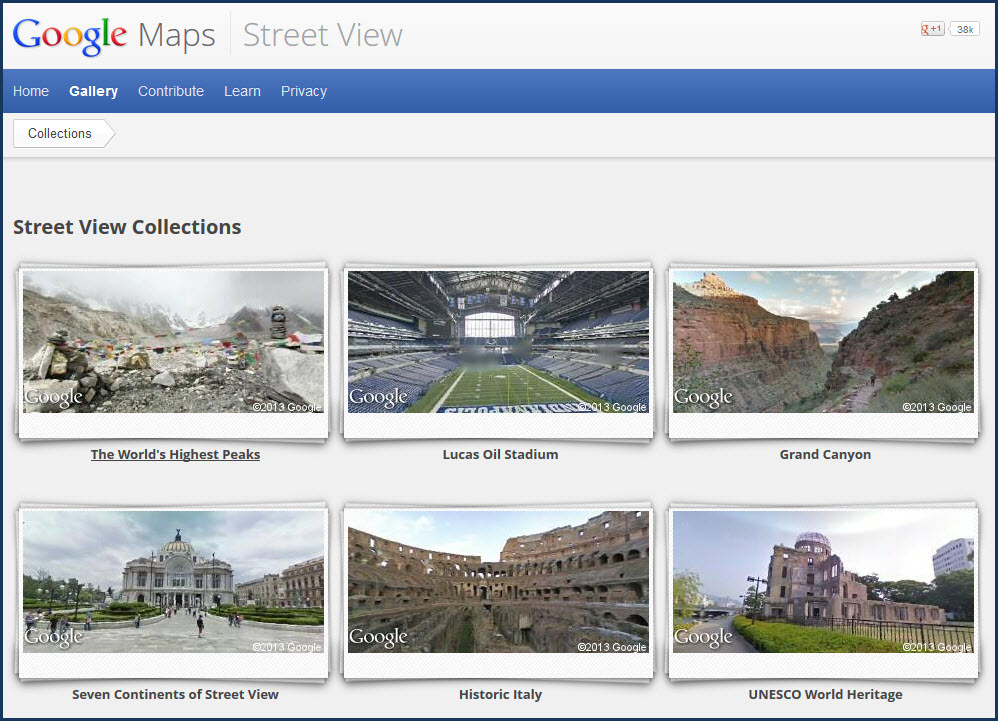
http://maps.google.com/intl/en/help/maps/streetview/gallery/ - Google’s street view gallery offers a catalogue of street views. Not all the views are of streets however; pictures of the Grand Canyon and the world’s highest peaks are included.


http://laphamsquarterly.org/ - Scholarly, eclectic and engaging; this quarterly publication is curated by Lewis Lapham, long associated with Harper’s.


http://www.mnh.si.edu/vtp/1-desktop/ - Take a virtual visit of the Smithsonian National Museum of Natural History.  You can visit exhibits, room by room. The clarity is stunning.
 

http://stackexchange.com/sites - Have a question? This aggregator site brings together over 100 Q & Sites to allow you to get help with any question you may want answered.


http://www.languageisavirus.com/ - A great site for creative writers.  There are all sorts of prompts, games and exercises.


http://ctrlq.org/screenshots/ - This site takes screenshots of web pages and offers a downloadable file ready to save to your desktop.  It’s a very convenient way to save a full web page image.


http://www.printwhatyoulike.com/ - This site can work hand-in-hand with the one above.  It allows you to modify a web site image so you can print any parts of a web site you’d like.  A little experimentation lets you see the power of this site.


http://publicdomainreview.org/ - Every day, plenty of media content enters into the public domain. These materials can be freely used by educators, and there is plenty here to choose from. It’s a quirky and interesting site, and potentially curricularly valuable.


Monday, April 8, 2013

Technology Skills: What will be needed by GSB graduates?

   I've been giving some thought as to what technology skills GSB seniors should have as they make the transition to college.  As I began to create a list, I realized it's surprisingly difficult. The difficulty, of course, rises from the the rapidity of technological change coupled with my inability to accurately predict the future.
   If, for instance, I was creating this list in 2009, I would not have included an ability to manage a cloud storage account.  Four short years later, it seems to me that this is a very important skill to have.  In fact, it was only in the year 2009 that I first heard the term "cloud" used in a technology context.  
   In no particular order, here's my working list as of today:

   1. Create and edit digital audio content
   2. Create and manage a blog
   3. Create an infographic
   4. Create a film that you have edited
   5. Create a screen capture tutorial
   6. Create a screencast
   7. Use polling software to create a survey and analyze results
   8. Use file sharing tools to share documents with remote users
   9. Create a multimedia presentation
   10. Create a web site
   11. Create and manage a cloud storage account


   What's left out? Those skills that I believe are easy fairly simple for most students and those that are largely for the tech aficionados.  The simple skills include using a touchscreen tablet, maintaining an email account, completing a Word document, etc. Skills that may be a bit too challenging for an expectation of commonplace usage include code writing and working with software to create interactive visualizations.


Care to weigh in? In terms of technology skills, what do you believe will serve our students well as they look ahead to life after GSB?  Feel free to post a comment below.


Monday, March 25, 2013

Team Chaos 2013

   GSB is a busy place.  It's hard to keep track of the all the activities our students and faculty engage in.  I'd like to use this post to highlight one activity - robotics - that is not particularly well known. It's a shame.  Robotics is a terrific activity; in fact, it's virtually the poster child for what has come to be known as 21st century learning.
   What's involved in 21st century learning?  Among the skills commonly associated with the phrase are collaborative learning, the utilization of digital technologies (hardware and software), problem solving and critical thinking.  Robotics utilizes all these skills in a competitive environment that helps students strive to do their best.
   Our school's team goes by the moniker "Team Chaos."  It's a tip of the hat to the world of robotics, a somewhat frenetic place where on-the-fly thinking is necessary and where the the competition arena can seem like a cross between a championship basketball game and Mardi Gras.
   The work begins months before the competitions when teams learn about the year's challenge.  This year, teams needed to create robots that could accomplish two skills: throw frisbees through an opening and lift themselves off the ground onto a sort of pyramidal jungle-gym.  Our team, using newly created space in the art barn, got to work.  Two faculty mentors, Len Grabowski and John Taeschler worked with upper school students and volunteer engineers.  Designs were examined and scrapped. New designs were drawn. Models were built. Tests were done.  Months later, Team Chaos, also known as Team #2458, had a working robot.
   This year's first competition was held at Mt. Olive H.S. the week-end of March 23.  Over two days, team members competed in the arena and worked in the pit area, constantly adjusting and refining the robot's mechanisms.  I stopped by on Saturday to watch the competition. The following video will give you a sense of what a First Robotics competition day is like. 


    It's worth a mention that one team member, senior Ben Brown, built an iOS app for the GSB team.  The app is searchable in the iPhone app store as "FRC 2013."  The app gives information about the First Robotics organization and specific information about GSB's robot #2458. Here's the home page:

Thursday, March 7, 2013

Computers and Mobile Devices: Keeping your Device and Your Data Secure

   Let's forget about the school environment for a bit and think about your digital life outside of school.  Strong possibility there's a computer at home, or maybe two.  Could be a tablet as well.  And for most readers, there's a good chance you own a smartphone too.  All of these devices can contain sensitive, important information. Contacts, data, documents, etc. are generally important to users and not meant for public dissemination. Your devices should be secure.
   Generally, people think about the security of their computers and other mobile devices only when there is a reminder that bad things can happen.  Maybe a friend's computer was hacked. Maybe yours was infected with a virus. Maybe you lost your phone and worry about who will access the data. Or maybe, in a coffee shop, you look around and wonder if someone can use the public wireless network to somehow access your hard drive.
   Why not think about digital security now, when there is no emergency?  Here's a short list of steps you can take to practice safe, secure computing.  This list is by no means complete.  It's meant to be a place to start.  But every suggestion is easy, free (or relatively inexpensive) and important.
   Let's start with the creation of a log-in password.  All your devices should require a password to access the operating system.  Some people don't want a password on their home desktop thinking "It's only me using this computer." True....until a burglar enters. Creating a simple 4-character password will not slow you down but will slow down unwanted intruders.  (A more complicated password that has at least 8 characters and mixes letters, numbers and symbols is ideal, but may slow you down a bit.)
   Mobile devices can utilize an antitheft locator tool.  iPhones, for instance, have a "Find my iPhone" tool. Similar tools exist for android phones and tablets.  These sorts of software tools, utilizing GPS, can be very helpful to locate lost or stolen hardware.
   Run security checks on your PC. You may have third-party software designed for this purpose, or you can use Microsoft's software that is part of the operating system. In Windows 7, for instance, find the System and Security section. In the Action Center, check the security prompt. It's also a good idea to review the information in the Windows Firewall and Windows Update sections. Working with a Mac? In Systems Preferences, check the Security & Privacy section and be sure your Software Update is checked as well.
   Even modest digital consumers begin to acquire an unwieldy list of user names and passwords.  It is important to vary passwords. Additionally, passwords to access important data such as banks, credit cards, etc. should be complex.  But invariably, users realize it's virtually impossible to remember needed user names and passwords.  How can this problem be solved? There's no single solution, but one is to create a document of user names and passwords.  A spreadsheet would work well.  Then, it can uploaded to cloud storage; www.dropbox.com will work nicely. Dropbox is free up to 5 gigs of storage and is accessible with Internet access. It is password protected.  A second layer of security can be implemented by password-protecting the document with a different password.  Even if an intruder got into your Dropbox account, a second password would still be needed to open the document.  Though not perfect, it's far better than writing passwords down and putting them on a post-it under your keyboard.
   One last tip: check your antivirus software. Make sure it is relatively recent and comprehensive. I mention "recent" because newer software products have special features designed specifically to protect you while using social networks. A few top security software suites include F-Secure Internet Security 2013, Norton Internet Security (2013) and Trend Micro Titanium Internet Security 2013.  Prices vary, but generally figure about $50 a year. $1.00 a week for peace of mind is probably worth it to most users.
   Paying attention to basic security can help to insure a better digital experience.

Friday, February 22, 2013

Infographics MOOC: Final Thoughts

   My foray into the world of MOOCs concludes this week. Guided by professor Alberto Cairo, I have found that I have learned quite a bit about infographics and data visualization over these last seven weeks. I began the course with a familiarity of the topic garnered solely through looking at infographics in newspapers, magazines and web sites. I regularly read the NY Times and they have a large infographics department. The online version of the paper offers many fine examples of infographic and data viz materials. (Check this blog entry for some information on the work found in the NY Times.) But you'll notice, if you are looking, that infographics appear in many media quite regularly.
   For this course, the goals were to learn the theory behind the the creation of an effective infographic, to be able to apply that theory in critiquing the work of others and to create infographics from data sets.  For those who were ambitious, materials were provided to learn more about two software products used in the profession to create static and interactive graphic materials. The software products, Tableau and Adobe Illustrator, were supported by a series of video and .pdf Help Guides.
   The course's final project asked each student to take a data set and create an infographic.  There are thousands of students enrolled in the class from all over the world, and not surprisingly, final projects covered a wide variety of topics.  I chose to utilize data from GSB's Admission Department.  Looking over enrollment numbers going back over 10 years, I tried to discern patterns that might provide useful information. In short, I was looking for a story.  What I ultimately decided on was an interactive infographic that would visually show the towns our students came from year after year.  You can take a look at the infographic as a .pdf or check the screenshot below. 

   
   Final thoughts? This MOOC offered what I was looking for. I learned a lot. I enjoyed the flexibility to work when it was convenient to me. I liked not having to commute to class. When I queried the professor with a question or concern, which I did three times, a response was offered quickly and in a thoughtful way. A considerable part of the learning structure was built around peer feedback. This part of the course was least satisfactory. Some feedback was excellent, some less helpful. But peer-to-peer interaction utilizing online forums is frequently found in MOOCs and other online coursework. It substitutes for class discussion and I suspect many find the trade-off frustrating.  Overall, I will say I was pleasantly surprised at how well this course was administered and how much I learned simply by following through on the readings, videos and activities. As in any course, the professor deserves a lion's share of the credit for its success. Thanks, Alberto, for shedding light on a new area of learning. 

Tuesday, February 12, 2013

iPads in the Kindergarten: An Update

   Not too long ago, I asked Diane and Elise how it was going with our iPads-in-the-Kindergarten program. The answer from both of our teachers was an enthusiastic "It's going very well!"  Naturally, I wanted to see for myself how the students were using the devices, and what, in particular, was working well.  For that matter, I was also curious about the program's shortcomings.  A couple of visits to the classrooms told me a lot.

   The iPads in each room are stored and administered by the teachers. They do not go home with the students. "Storing" really means keeping track of charging the devices. "Administering" means researching and loading apps students will use. Though we've established a system whereby apps can be purchased, thus far, only free apps are being used by the students. Elise and Diane have both told me there are plenty of free apps and no end in sight.

   Here's a look at a home screen from a students' iPad. You'll see many of the apps they are using.


   Keep in mind that apps are chosen for their value to kindergarteners.  So apps that facilitate counting, tracing, spelling and word recognition are important. Stories, especially if they have interactive features, are also utilized. And especially important this week, an app like Collage Pic that allows the kids to create Valentines for their parents is particularly timely.

   In looking over one of the story apps, I noticed that today, February 12, they had posted a special story on Abraham Lincoln. It is his birthday, after all, and the story telling seemed like a good fit for the age group.

   Here's a few pictures of our kindergarteners hard at work:


   Look closely and you'll see a few things. The students are definitely engaged in their work. They work on carpeted areas to reduce accidents. And they all are working on their own device. But do they ever collaborate?

   Yes, occasionally, as seen above. But for the most part, the apps dictate a more personal approach.  I asked both students and teachers what they did not like about the iPads.  The teachers mentioned that managing the devices was one more thing to do, but the tasks were not onerous. The students easily could tell me about their favorite apps but had a harder time telling me what they did not like about using iPads in  class. All in all, I have little doubt that our iPads are facilitating learning in a way that is both productive and fun for the students.

   And what about that Valentine's Day project? It's coming along...


Monday, February 11, 2013

My MOOC: Some further thoughts

   As I write, I'm continuing to learn about infographics and data visualization as a student enrolled in a MOOC hosted by the Knight School of Journalism, University of Texas. I posted earlier that this course had met my expectations; it is soundly structured, administered with care and most importantly, has provided the tools to learn quite a bit about infographics and data visualization. 

   Last week, we were given a data set to work with that had been generated by KPMG, a global accounting firm.  The data compared tax rates (and several sub-sets of tax rates) among the world's nations. Our job was to create a visualization of the data that helped a viewer understand the numbers.  Here's my project: Tax Rates and Standards of Living Though it's fairly clear how this graphic should be interactive, right now it is not interactive.  I've been learning a bit about Tableau and Adobe Illustrator, two software packages that can be used to create interactive graphics, but there's a lot to learn.  I'm still some distance from producing fully interactive graphics.

   As an enrolled student, I have a perfect opportunity to learn more about how MOOCs work. I asked our professor about attrition rates, and he mentioned that 15% of the enrolled students finished his last MOOC. He was quite happy with that number. Apparently, it's noticeably above average. Another notable characteristic is the international make-up of the enrolled students. I don't have hard numbers, but from the forums that have been created, it is very obvious that there are students from around the world and they bring a wide range of life experiences to the class. Even given that "conversations" are held entirely online, I do feel I have gained from the exposure to this wide range of peers.

   There's quite a body of literature that has been created over the last years as people critique, support and evaluate MOOCs. As a regular reader of The Chronicle of Higher Education, I know that MOOCs have been a continuing topic of interest. I read an article over the week-end and thought that it did a fine job reminding readers that for a great many currently enrolled college students in the U.S., new models of higher education are welcome, and even needed: Your Massively Open Offline College Is Broken  As presented in the article, facts about costs, enrollment and job prospects combine to make a compelling case for MOOCs and other education models that are cheaper, more responsive to shifting job markets and more flexible in how coursework is offered.