Tuesday, September 29, 2015

The Middle School Learning Commons - Part 2

   In the first part of this series, the library space was highlighted as one-half of the Learning Commons.  In this second part, we'll take a look at the MakerSpace.
   MakerSpace areas have gained traction as hands-on learning areas. Some emphasize digital learning, some emphasize more traditional craft work and some are all-purpose spaces accommodating a wide range of learning activities. Our MakerSpace emphasizes digital learning, though leaves room for other types of projects.  A good example of the digital learning that will occur in our MakerSpace involves Arduino Boards.  These mini-processors allow students to learn basic coding and enable students to literally see their code translate into actions.  Arduino Boards can be programmed to complete functions such as make a light blink, play a tune, read a switch and create a LED graph. The MakerSpace is well stocked with Arduino Boards and associated peripherals.
   Though the space is monitored by Lia Carruthers, any MS teacher can schedule class time in the MakerSpace.  On a weekly basis, Carrie Petkiewich is bringing her Computer Education classes to the MakerSpace as well. Clearly, right away, the space is getting used.
   I dropped in on the MakerSpace and happened into a lesson Frank Corrado led involving Google SketchUp (design software).  The students were using the new set of Surface 3 tablets to create architectural renderings.


Students, using their Surface 3 tablets, work on their designs. If needed, any of the devices can send a print job to the wireless printer in the room.
   Frank used his tablet to stream instructional materials to the TV on the wall.


A 55" flat screen LCD TV offers excellent resolution.
      Other features of the room include a couple of 3D printers, plenty of counter top and storage space that includes a sink, a cart full of supplies and a printer.

Above, two 3D printers sit atop a counter top already filling in with projects.
The cart offers plenty of supplies for student projects.
   

Thursday, September 24, 2015

The Middle School Learning Commons - Part 1

   This is the first of a 2-part series on the new Middle School Learning Commons.

   After a summer's worth of renovation work, a new space has been brought to life in Conover.  It's called The Learning Commons and features two distinct areas. One area serves as the Middle School library. (The other area, the MakerSpace, will be featured in the next post.) After years of doing without, grades 5-8 now have a collection of books and research materials housed in a space specifically designed to serve its needs.
   The library has a number of distinct elements. There is, of course, shelving full of books and other related materials. Most of this collection can be checked out to students or faculty for use outside of Conover.  It's clear that the Middle School has quite a few readers; works of fiction are "flying off the shelves" according to Librarian Lia Carruthers.


  The library also has a SMARTBoard that is available for instructional use. Research projects are often centered in library research, and the Middle School now has an well-appointed facility for class instruction.


   Lia's desk is in the library space, but it is positioned for a sight line into the MakerSpace, the other area of the Learning Commons. She's seen in the picture below configuring several of the twenty Surface 3 tablets that are used for both research and MakerSpace projects. Just beyond her desk, you'll notice the mobile cart that is used to charge the tablets and transport them to classrooms in Conover as needed.  


In the picture's background, sliding glass doors separate the library from the MakerSpace.
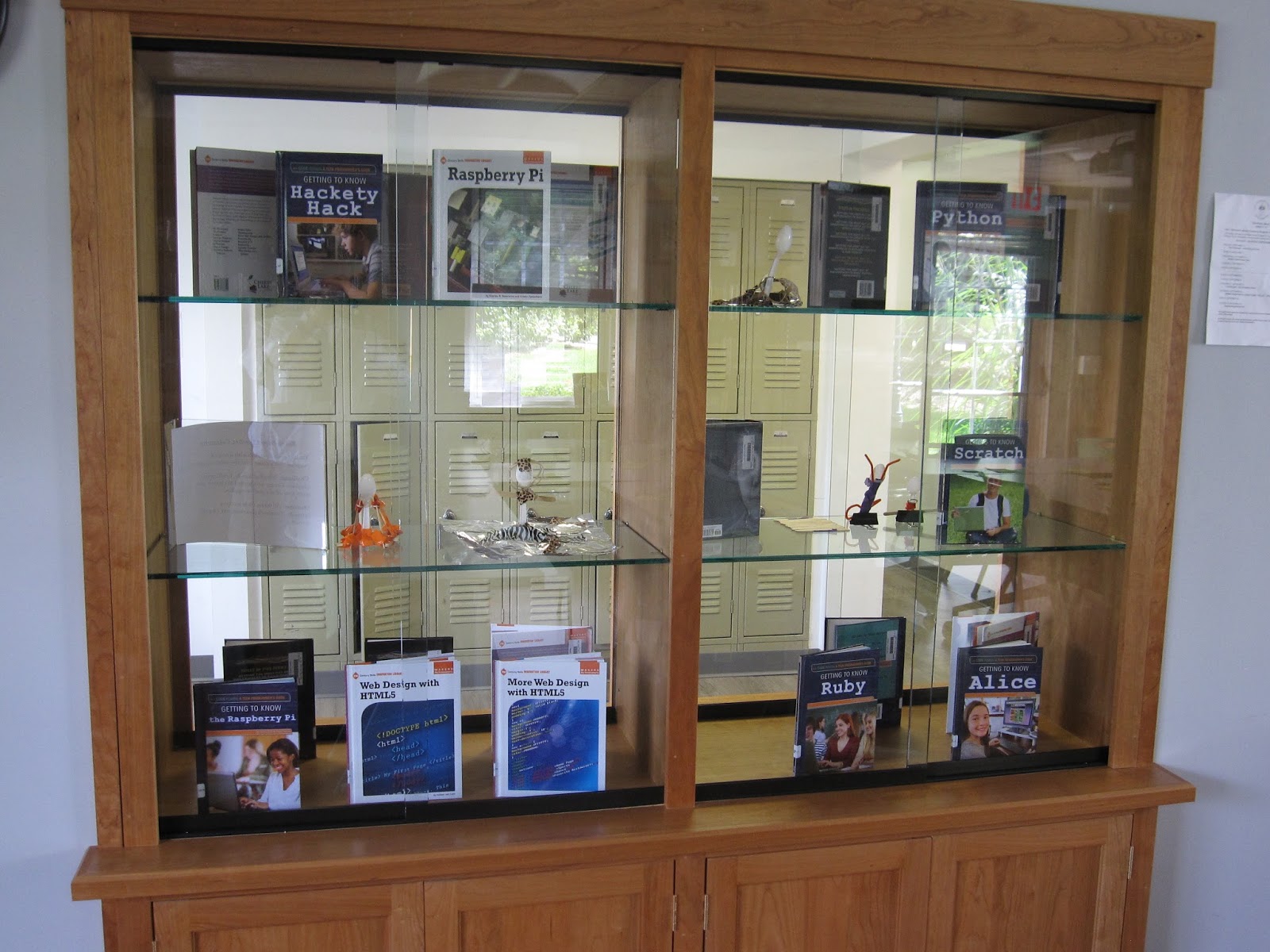
   One last noteworthy feature of the library is the built-in display cabinet fashioned by Bob Ort.  The design allows for onlookers in the exterior hallway or from within the library to see exhibited books and materials.


   Coming up in the next post: a look at the MakerSpace.

Friday, September 11, 2015

Old Needs, New Approaches

   Over the last couple of years, two new approaches to technology usage have gained a foothold at GSB. Both are welcome changes because they effectively address user needs while offering cost effective, environmentally sound solutions. Neither are particularly dramatic, yet both offer a path towards a more sensible technology environment at school.
   The first approach involves document printing. It's no secret that printing is expensive and exacts an environmental toll. I've learned to view printers as devices designed to sell ink.  In that regard they're very successful. It's impossible to say how many printer cartridges we as a school purchase in the course of a year. That's because purchasing is not centralized. But even a casual observer knows that we go through quite a few cartridges.
   What if we could print with equal clarity, but each printed sheet would cost less and carry a reduced environmental impact? In fact, we can we do just that and we've been moving towards increasing the number of people utilizing this new, improved approach to printing.  Simply put, it involves sending print jobs to a copying machine instead of a printer.
    How can you print to a copying machine?  First. the copying machine needs to be networked. Many, but not all of our copying machines are now networked. Second, your computer needs to be configured so a copying machine shows up as an available device as you create a new print job. Then, it's as simple as selecting the copying machine as you access your print editing screen, and click on Print.
   Are there downsides? At this point, two are commonly apparent. One involves convenience. Printers typically sit on user's desk, so as print job is completed, the paperwork is instantly available. Printing to a copying machine usually involves a walk to a copying machine to retrieve a job. (It's also worth noting that occasionally, a printed document contains sensitive information. Users could be understandably reluctant to have sensitive documents printing to a remote copying machine.) Another downside involves color. All our networked copying machines are back and white.  If a user wanted to print a color document, a traditional desktop printer remains the sole solution.
   Both the convenience and color issues point to the fact that this approach to document printing has gained traction in school offices, but classroom teachers continue to find the downsides to be significant impediments.  In the future, bringing color copying machines to areas convenient to classroom faculty may provide us with a more sustainable approach to printing. And making an effort to network all our copying machines - which can involve significant infrastructure work - remains on the school's to-do list.
   At the outset of this post, I mentioned two new approaches to technology usage. In addition to how we're printing, there's also a change to how we're viewing. Over the last ten years as digital technologies became a part of how we presented and viewed information in group settings, digital projectors were the devices of choice. At GSB, they appeared as stand alone devices, as ceiling mounted classroom fixtures and as integrated devices in SMARTBoard systems.  
   In the last year or two, however, we've begun to change our approach.  LCD TVs are now beginning to replace projectors as new spaces are renovated for new uses.  These TVs are now cheaper than projectors for a similar screen size and offer significantly better clarity and color reproduction.  They can be directly cabled to a computer via a HDMI line for excellent screen duplication.  And using a duplication system like Apple AirPlay or a Microsoft Wireless Display Adapter, users can wirelessly mirror their computer displays to the TV.
   Two recent examples are in the Middle School Learning Commons and the Upper School photo lab. Both spaces were newly created over this last summer.  In the MakerSpace section of the Learning Commons, a 55" flat screen TV wirelessly connects to the Surface 3 tablets students and teachers are using via the Microsoft Wireless Display Adapter. In this way, instruction can be provided to groups and work can be shared by students and faculty alike.
   In the new photo lab in downstairs Founders, the 55" TV connects to all the iMac desktops in the room via Apple AirPlay.  Again, the technology provides the system for content delivery by the teacher and for work sharing by all class members.  


Old needs, new approaches: a brief video illustration featuring Lia Carruthers and Dave Pasquale 
with a cameo appearance by Lauren O'Leary

Sunday, August 23, 2015

CryptoWall

   Last week, a viral attack on a GSB user's computer precipitated a chain of events that kept a variety of people very busy for several days. To say that we were in "crisis mode" would not be an exaggeration. To understand why, it's helpful to first consider computer virus types.
   Computer viruses can be categorized into different types. One type, more prevalent in the early days of computing, might be termed leaving a calling card.  This type of virus, when successfully deployed to an unsuspecting user's computer, causes unusual computer behaviors.  Turn on your computer and suddenly there is a message on your screen: "Hi! You've been hacked!"  Often, the hacker's main goal is to show that he or she is crafty enough to circumvent installed security software. 
   A second type of virus might be called commercial messages whether you want them or not. These viruses have become quite common and we've had our share get through our anti-virus software and land on people's computers.  A frequent characteristic is the random pop-ups users experience.  Often, there is a commercial element involved. The hack is designed to make you aware of a product or service and buy it.
   A third type of virus might be called put the cash in a bag. These viruses are propagated by criminals for the express intent of stealing money. Some of these viruses will look for valuable information (e.g.: social security number, bank account information, web site passwords, credit card information) and transmit it to the hacker. That information is used to steal funds or use accounts for profit. A second category of this third type of virus is called "ransomware."  If a ransomware virus infects your computer, your files will be encrypted and the hackers will demand a ransom to provide an encryption key. Without the key, the files are useless.
   A GSB user's desktop was infected with a ransomware virus called CryptoWall. What the user saw were the files, all with a strange .aaa file extension.  A pop-up on the screen gave explicit instructions about how much money it would take to get a key to access the files, the amount of time allowed by the criminals and the method of payment. In this particular case, $500.00 was demanded, payable within a week in Bitcoin. There were specific instruction about how to convert US dollars in Bitcoin currency.  If payment was not made in the specified time period, the cost of the key doubled to $1000.


The ransom demands as they appear on user's screen.
   A NY Times article earlier this year gave a first person account of a CryptoWall hack. It's a quick, interesting read. And the FBI's web site has information as well.
   We first learned about the hack late Thursday (8/21) morning.  Immediately, the computer was evaluated.  The desktop files and all other files on the hard drive were encrypted.  An attached external hard drive also was completely encrypted.  And alarmingly, the various server drives this user was mapped to were also encrypted.
   As a technology department, we've dealt with many computer viruses over the years.  I would guess 5-10 users a year have a viral infection on their desktop. To date, none have ever gone beyond the end point hard drive and all have been successfully resolved. I believe all have been the second type as described above.
   To see files encrypted on the server was cause for alarm. Clearly, we were dealing with a more potent strain of virus that we had previously seen. And of course we worried that perhaps the encryption could spread, further compromising our server content.
   We immediately isolated the infected computer from the network. Larry went to work evaluating the file damage and looking for latent threats. A decision was made to conduct a double-blind review of the health of the server. Ryan as well as an independent sub-contracted software engineer scanned our server drives for problems. Most important was an ability to confirm there were no "trojan horses" in the system, viruses that lay low and activate at a later date. Our independent review was conducted by Ivan of Aspire Technology Partners. By morning, both Ivan and Ryan were ready to issue the all clear sign about further threats.
   Early on, I reached out via the NJAIS sponsored listserv to my colleagues. Our NJAIS Technology listserv has proved an invaluable tool to share news and solicit advice. In this case, I wanted to do both. As I've come to expect, my colleagues were unfailingly helpful and sympathetic. It's a reminder that professional networks can prove very useful when addressing a variety of challenges.
   The next step involved restoring encrypted files.  CryptoWall software is very sophisticated and files are not easily "freed" from their hostage state. That said, tools are available, often provided by a community of hackers who see themselves as the good guys in a fight against the criminal use of software. But for our server files, a far more easy solution presented itself. The corrupted files could be deleted out of the server drives, and the affected drives could be reimaged to a pre-infected version. When a server is backed-up daily, past versions (to a limit) remain available as file back-ups. Ryan saw that going back to Tuesday, 8/19 would yield an uncompromised version of each file.
   If any files had been changed or added to a server after 8/19, that data would be lost. Fortunately, given the time of year and the particular server drives affected, we're confident content lost is negligible. 
   What about the user's desktop files and the files on the external hard drive? S0 far, a small percentage have been restored. Efforts will continue with no guarantee of success. We'll know more over the next few days. 
   What's a computer user to do? Is it just inevitable that a virus infection will wreak havoc on your computing life at some point? In fact, some common sense tactics are remarkably successful. First, though, a user needs to understand how computer viruses are transmitted. There's really two main ways: email and web sites. 
   If the virus is in an email, it is almost always in an attachment or a link. Clicking on an affected link or attachment and you've unleashed the virus.  The key to safe computing is looking before you click.  Almost always, the email looks a bit fishy, a bit off. Perhaps there's a strange group of unrelated people in the address window. Perhaps the link is completely unfamiliar. Perhaps the text of the email strains credibility (banks in Nigeria, anyone?). At any rate, use caution and judgement and DO NOT click on suspicious email links and attachments.
   If a web site carries a virus, it is generally embedded in an ad on the site.  Reading an article the other day, the author mentioned that Yahoo and weather.com have a higher than average rate of infection on their ads.  The trouble is that hackers creating viruses embedded in ads are very good at disguising their work. Everything looks perfectly normal until your click unleashes a virus. You may not know about the infection until a day or a week later so it's often difficult to trace a virus to its source.  It's difficult to advice computer users to never click on an ad, but be aware that you do so at at least some risk.
   In the case of the GSB ransomware attack, we have reason to think the user's external hard drive was already carrying the virus when it was plugged into the desktop. There is file evidence to suggest it though we're not certain. This means that it will be very difficult to ascertain the source of the virus.
   So exercising caution while on the web is critical. So is operating in a computer environment that defends against attacks. Clearly no defense is 100% effective - there's an ongoing cat and mouse game between hackers and anti-virus developers - but keeping up-to-date with software installs and updates helps. At GSB, we filter the Internet, adblock and install anti-virus software on computers to supplement operating system software. Obviously, those layers of protection were not enough. We'll be looking carefully at our current protocols with an eye towards more complete protection.
   Perhaps the single most important step a user can take to protect against catastrophic loss is to back up files.  A user at GSB has several back up options. Once a file is created, it can be copied and saved to another location on the computer's hard drive. One copy might be on the desktop, one copy in the Documents folder. This form of back up is not effective and should not be used. A second form of back up is to create a file on the desktop and save to an external hard drive or a connected thumb drive. This form of back up is better, but other options offer far more security. A third option is to save the second file copy to a server drive.  This is a good option, though this post clearly suggests it is not without risk. Still, it's safe to say that server back up is a strong option given the track record of success. The last option is the best: utilize OneDrive or other cloud storage as a remotely hosted, independently located site.  All GSB users have OneDrive storage access and used in combination with a file saved on a desktop, server or external drive, a user can feel confident about the content security. Users who do not back up files of value are living dangerously close to edge.  Please, back up files you value.


Thursday, May 28, 2015

Drones, Aerial Photography and GSB

GSB looking north into Morris county - May 26, 2015
   This week, Greg and Josh from SkyVue were on campus with a drone.  Drones, of course, are pilotless aircraft. They can be be incredibly useful but are not without controversy. To some, they are the very embodiment of technological utility. To others, they represent the worst of technology: the soulless machine.
    Safe to say SkyVue's drone was making a positive contribution.  The drone's mission was to photograph campus from an aerial perspective. With a high resolution camera mounted to the remote controlled drone, a set of photographs were generated that offered crystal clear panoramic shots of our campus.  On a beautiful day in May, GSB really shines!

SkyVue's drone, getting ready to take flight.
    But before we take look at our drone and it's work, you might be interested to consider the impact drones are having in fields as wide ranging as commerce, agriculture and the military.  The weekly news program 60 Minutes made a splash earlier with a story about Amazon's plans to use drones to deliver products. The story was posted on the cbsnews site and includes a link to the 60 Minutes video.  And more recently, the New York Times ran a story on farmers using drones to do flyovers so they could assess the state of their crops. Weed, water and harvest management are all more efficiently accomplished using pilotless craft outfitted with a camera.  But their actions are often in violation of FAA regulations, and this has set off a debate over commercial drone regulation. Over the winter, a New Yorker piece took a close look at the use of drones by the military.  An increasing number of military air missions into combat zones are done by pilotless craft. Often the personnel at the controls is housed thousands of miles away, joystick in hand. This relatively new form of air strikes leaves some to wonder how warfare is evolving.
   Yes, drones deserve our thought and attention, but we can also marvel at how they can solve certain problems with efficiency. If, for instance, you wanted spectacular aerial panoramic photographs of the Gill St. Bernard's School campus, then a drone offers a perfect delivery system.  Here's a brief video of SkyVue's drone in action:


    And those photos mentioned at the end of the video?  Take a look at the opening shot to this post, and a couple more below....
Our newly acquired pond, part of the Homewinds campus.
In the foreground, disassembled playground equipment 
in preparation for field house construction.
Beyond, recreational facilities and campus buildings.


Wednesday, May 13, 2015

What Happens in an Internet Minute? (cont.)

   In my last post, I wrote about data flow over the internet by focusing on what happens in one average minute.  Using a couple of infographic charts created by Intel, it was easy to see that even in a few short years, a tremendous amount of data moving over the internet stems from a relatively few sources.
    To tease out this data analysis just a bit more, here's another infographic I ran into that gives more information about data flow over an average internet minute.
To read more, go to the point of origin for this infographic: http://www.visualnews.com/2012/06/19/how-much-data-created-every-minute/

Wednesday, April 22, 2015

What Happens in an Internet Minute?


   What's an "internet minute?" It's an aggregate of all the data flowing over the internet over a given minute.  The numbers are staggering, and growing daily.  I won't get into data numbers; most eyes tend to glaze over quickly, and of course the information is readily available to interested people on the internet. Where else, right?
   To most of us, it is the trends and changes that command our attention.  For instance, more internet traffic now flows over mobile devices than over traditional computers.  Not sure who would have predicted that ten years ago.
By early 2014, mobile devices accounted for more than 50% of internet traffic. (a)

   Of course predicting where technology is heading is tricky business at best. At the dawn of the internet age, Netscape, Alta Vista and AOL completely dominated the newly emerging home page business, aggregating links, information and a browser. Only AOL has survived, but only barely. Internet Explorer, Firefox, Chrome and Safari now are our browsers of choice and the Google search engine is the home page of choice.  But don't for an instance think that they are permanent fixtures. Inevitably, time will bring change.
    A fine example of changes in internet use over time is found in a Cisco-created infographic, "What Happens in an Internet Minute?" The graphic was first created in 2012 and revisited in 2014.
    In 2012, YouTube, Google, Facebook, Twitter and Flickr were the top five sites in terms of internet usage.  A short two years later, Netflix is the number one site producing internet traffic. Yes, Netflix streams video and thereby use quite a bit of bandwidth relative to a site like Flickr, but even accounting for video's bandwidth requirements, Netflix has to be seen as one of the real internet success stories of the last few years. It's simply amazing how much traffic moves through their site. Perhaps even more surprisingly, Netflix and YouTube account for over half of all internet traffic.
   Earlier, I mentioned that mobile devices were now carrying more than half of all internet traffic.  One predictable change that follows the trend towards mobile computing concerns applications. In 2012, there were 47,000 app downloads in an internet minute. By 2014, that number had climbed to 194,064. Likely, as I write this well into 2015, there are over 200,000 apps downloaded in an internet minute worldwide.
   Another interesting fact is found in the 2014 infographic in the And Future Growth is Staggering section.  Here, it is mentioned that in 2017, there will be three times more connected devices than people on Earth. This alludes to the "internet of things."  You may have heard this phrase associated with the next big wave of internet usage.  Smart appliances, cars that can connect to emergency services and industrial machinery that is wirelessly connected to remote sensors all are part of the internet of things.  It's a trend that is growing in visible and invisible ways, and its growth seems without limit right now.
   Want to take a good, close look at these infographics? Right click on an image below and choose the prompt "save as."  Then save the file to your computer. Now, you can open it up as a separate file and even expand the image for a closer look.  And, you can begin to think what this infographic will look like a few years from now.   

This infographic illustrates an internet minute in 2012 (b)

In 2014, just two short years later, the composition of an internet minute shows some significant changes. (c)

   (a) http://searchenginewatch.com/sew/opinion/2353616/mobile-now-exceeds-pc-the-biggest-shift-since-the-internet-began
   (b) http://scoop.intel.com/what-happens-in-an-internet-minute/
   (c) http://www.intel.com/content/www/us/en/communications/internet-minute-infographic.html


Sunday, April 12, 2015

Filmmaking: A course for the 21st Century


    I was interested in finding out more about what are commonly called 21st century learning skills so naturally I fired up the Google search page and within half a second, had about 80,000,000 sites to check.  A couple of minutes later, I landed on Education Week's Teacher PD Sourcebook. The particular page was five years old but in this case, that didn't matter much. I had a succinct statement which seemed to accurately represent the consensus around the skill set in question.  Here's what I found on Education Week's site: The term "21st century skills" is generally used to refer to certain core competencies such as collaboration, digital literacy, critical thinking, and problem-solving that advocates believe schools need to teach to help students thrive in today's world.
   Reading that statement, my mind drifted to a conversation I had earlier this year with Ian, a student in my Filmmaking course. Class had just ended and as the students filed out of the room, Ian lingered.  We were chatting about this and that - basketball, college, his other classes - when he suddenly said "I'm really glad I decided to take this class." Of course that's music to any teacher's ears, so naturally I wanted to hear a bit more.  "Why do you say that Ian?" Ian's reply took me totally by surprise. I assumed he enjoyed the relaxed classroom environment and the creative independence given to students. But he said, "I think this class is really preparing me for whatever comes next."
   We talked some more and as Ian more fully explained his statement, I found myself thinking about the course in a very different way.  Ian noted that through learning about filmmaking, he was becoming far more adept at using digital devices.  Students in class will routinely use phones, video cams, tablets and computers in preparing films.  He also mentioned that he has a more through understanding of file formats and file conversion technologies than he had previous to the course. And these types of skills, he reminded me, are the types of skills likely to serve him well in college and the work world.
   That was our brief, after-class conversation some months back. But looking over the list of 21st century skills, I began to think of the Filmmaking course as an excellent delivery system for all the skills.  The Education Week site mentions collaboration as a 21st century skill.  In Filmmaking, students are often paired or put in small groups to work on a project. But to me, the real meaning of collaboration in a classroom means that students help one another as opposed to compete with one another. In class, even with students working on individual projects, it is very common for a student to be stuck with an editing challenge. "How can I layer visual images?" "How can I add a sound effect to this part of my film?" What's the best way to transfer a sound file from my phone?" The most common way these challenges are addressed is another student saying "Oh, I can do that" and showing the solution.  This is the essence of a collaborative environment. It's an environment where students do not compete; rather, they help each other.
   According to Education Week, digital literacy is another 21st century skill.  Digital literacy grows organically out of students' exposure to digital technologies, be they hardware of software.  Learning about file formats, file conversions and file sizes, students become increasingly literate.  As exposure to different hardware tools increase - cameras, phones, microphones, computers - literacy continues to increase. By course's end, all students are more comfortable in the digital world. Their 21st century skill set has improved.
   Another 21st century skill is critical thinking.  This skill implies an ability to carefully examine data and make decisions about how it can best be used. This skill is at the heart of creating a good film.  As filmmakers assemble footage, decisions are first made about how to shoot a scene. Those decisions include lighting, camera angles and scene set-up. Later, decisions are made when these scenes are edited and the film assembled.  Without critical thinking, the film is likely to be disjointed.
   Finally, problem solving is mentioned as a 21st century skill.  Creating a film is an exercise in problem solving. From the problem of what story to tell to gathering your equipment, setting up your shots, managing your actors and working with your software editing package, creating a film involves solving problems. To develop problem solving skills, students need to be left alone to solve challenges they encounter. They can pointed towards solutions, but genuine learning occurs when they are given room to fail as well as to succeed.
   Ian probably didn't know he was talking about how 21st century skills are developed in a Filmmaking classroom, but as I think about how students are learning in class every day, it's clear to me that Ian was on to something.
   One more thing about 21st century skills: I'm not really in love with the idea that somehow, in the digital age, a whole new set of skills will define a successfully educated individual.  The skills set that served earlier generations still remains relevant. Students need to be able to read, write and reason quantitatively (the 3 Rs). Students need cultural literacy as well, and that include knowledge of the sciences and social sciences. And the truth is, 21st century skills as we've come to know them were relevant far before the year 2000.
   Best to wind up this post with a few recent student projects from Filmmaking.  The assignment was to create an ad for a product.  All required collaboration, digital literacy, critical thinking, and problem-solving, skills that at least one student sees as invaluable as he looks ahead.


Wednesday, March 25, 2015

Technology in Service to Learning

    Over the last several weeks, there have been a number of candidates on campus interviewing for open positions.  I asked one of them to talk about his thinking regarding the place of technology in a school setting.  One sentence stuck with me: "Technology should be in service to learning."
    I'm sure one of the reasons this sentence was memorable was that it closely aligns with my thinking.  The essential role of technology in a school is to broaden and deepen learning opportunities. But this candidate's statement also reminded me of two recent projects that showed how technology can support learning.  Each of these two projects began with a teacher wondering if there was a technological solution to a pedagogical problem. In both cases, the answer was yes.
    The first problem was posed by Amy Newman. Among other courses, Amy teaches a Photography section in the Upper School.  Amy was looking for a way to post student photographs online.  She wanted students to be able to easily share their work with a broader audience.  She was also mindful of the fact that the time and expense of printing photo work was burdensome, and she saw online postings as a sensible alternative.
    Amy didn't just want to post these photos online. She wanted students to be able to post their own photos.  But she wanted to be able to manage these postings with full editorial rights over content.  Additionally, she wanted students to write about their photos.  This meant that any online solution needed to support images and text.
    Finally, Amy wanted other students (and herself) to be able to comment on the work of classmates.  Art classes have used peer critique as a tool to identify strengths and weaknesses in art work for generations.  An online solution could provide an ability to offer peer critique in a uniquely convenient way.
    Amy asked me if I had any ideas and together we worked through several possibilities.  I was hopeful we might find a way to use her KnightSite class site, but there is no way to allow students to post their own work. We eventually decided that PBworks provided the right solution.
The front page of the PBworks site used to post photos.
    PBworks allows teachers to create sites that are structured for classroom use.  The education division of the company began to develop learning management sites before they were commonly available to schools. The sites are free to create and use. Amy signed up for a site and began to structure it according to her needs.  She first created folders for each class section.  Then, in each class folder, she gave each student a web page with administrative rights to add/edit content.  All other students had rights to comment on any posted work.
   Here's a look at a couple of student pages:
A student photo and explanatory text; below, the comment thread just below the picture.
    Without too much bother, Amy was able to set up a single web site that allowed her to create spaces for each class, and pages for each student.  Students can post pictures and include textual information. Other students, and the teacher, can offer helpful commentary.  In short, we have here a nice example of technology in service to learning.
    I mentioned earlier that there were two recent projects that came to mind. The second project comes out of an Upper School Unit offering called Film Forum. This class is designed to give students film literacy through film history, scene analysis and an overview of how films are put together. The lead teacher, Fred Corona, wanted to include a "People's Choice" selection among the films that would be screened during the course. For this selection, students would be able to nominate a film and through consensus, one selection would be screened.  He wanted to give students time to think about their selection. He also wanted other students to see each posting, and to be able to comment on postings. Fred asked me about what I thought might be the most efficient way to gather the data.  I considered a shared survey, a tool supported by Office 365, but ultimately decided the easiest way was to use the Topics function of KnightSite.
    Each KnightSite class site has four tabs: Bulletin Board, Topics, Assignments and Roster. Topics allows a teacher to create a separate section for a particular unit of study. (As a reminder, after clicking on the Resources tab on KnightSite, you can access the Help Guides folder and find a Help Guide on using the Topics feature.)
    After creating a Topic, a teacher can add content using such content channels as links, text, photos, downloads, etc.  These content channels also appear on the Bulletin Board page. But the Topics options also include Discussion. The discussion content channel allows for class members to post text, and for others to comment on posts.  This  is the solution Fred was seeking.
    On the Film Forum class site, a Topic was created titled Your Film Suggestions.
To edit this Topic, click on the pencil icon in the top right corner of the Topic icon.
    When in editing mode, you can choose your content channels as needed. For this class, a Text option was selected to give directions, and then a Discussion option was selected so that students could post film titles.  The next screen shot will show this Topic in editing mode.
    After content channels are properly placed, the Topic is ready to be utilized.  The screen shot below will show the newly organized Topic. Though the site has not been up long, a few students have started to weigh in with their choices. You'll also notice that students' comments are attributed by name. This is handy because a comment is always linked to the author.
    There's nothing particularly fancy with this feature, but it works exactly as needed. It's another fine example of technology in service to learning.